OpenShift Virtualization on IBM Cloud, part 4: Creating a virtual machine

See all blog posts in this series:

  1. OpenShift Virtualization on IBM Cloud, part 1: Introduction
  2. OpenShift Virtualization on IBM Cloud, part 2: Becoming familiar with VPC
  3. OpenShift Virtualization on IBM Cloud, part 3: Deploying ROKS, ODF, and OCP Virt
  4. OpenShift Virtualization on IBM Cloud, part 4: Creating a virtual machine
  5. OpenShift Virtualization on IBM Cloud, part 5: Migrating a virtual machine
  6. OpenShift Virtualization on IBM Cloud, part 6: Backup and restore
  7. OpenShift Virtualization on IBM Cloud, part 7: Dynamic resource scheduling

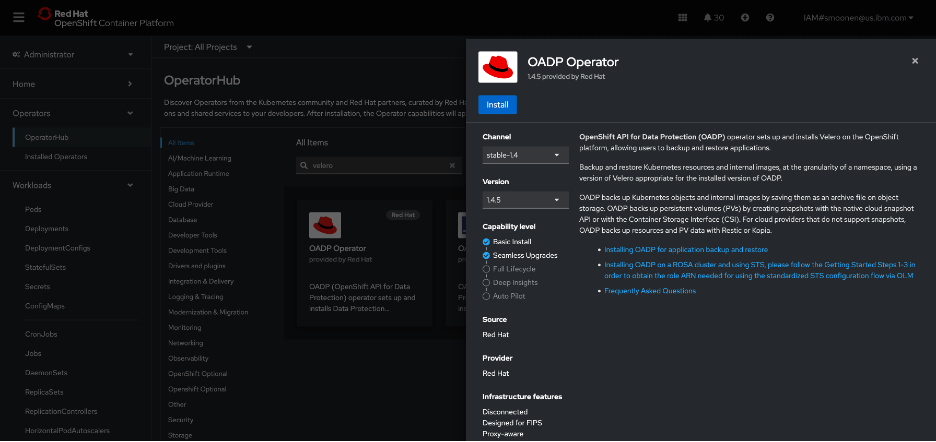
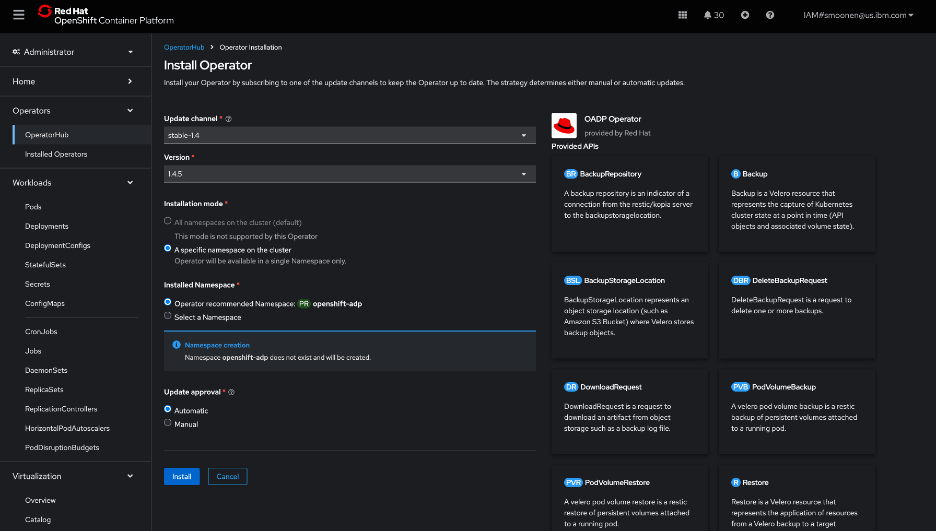
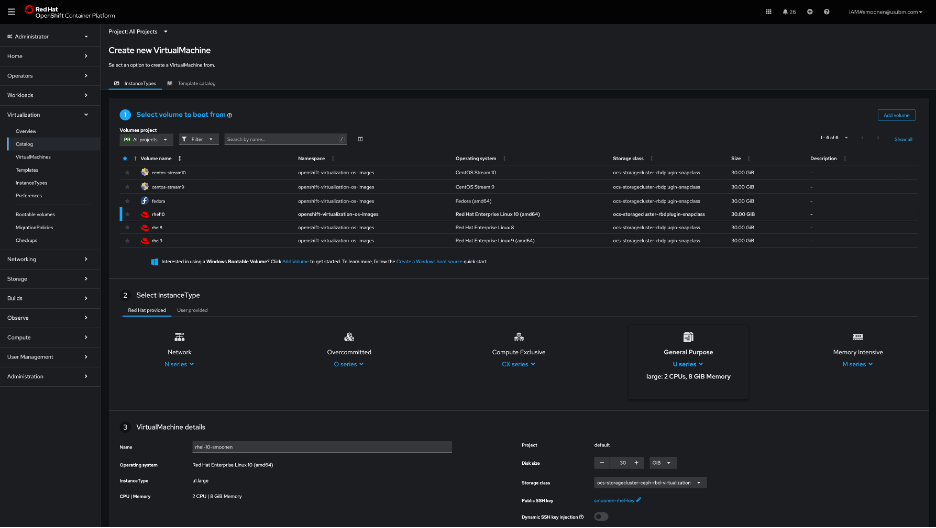
I had some initial difficulties creating a virtual machine from the OpenShift web console UI in the Virtualization | Catalog page, but later this worked okay. Here is a screenshot of that page, but in this post I will document a command-line approach.

For my command-line approach, I first used ssh-keygen to create an SSH key pair, and then created a secret based on the public key:

oc create secret generic smoonen-rsakey --from-file=rhel-key.pub -n=default

I then created a YAML file, referencing this secret, and with the help of the example YAML generated by the OpenShift console UI. Here is my configuration:

apiVersion: kubevirt.io/v1
kind: VirtualMachine
metadata:
  name: rhel-10-smoonen5
  namespace: default
spec:
  dataVolumeTemplates:
    - metadata:
        name: rhel-10-smoonen5-volume
      spec:
        sourceRef:
          kind: DataSource
          name: rhel10
          namespace: openshift-virtualization-os-images
        storage:
          resources:
            requests:
              storage: 30Gi
  instancetype:
    name: u1.large
  preference:
    name: rhel.10
  runStrategy: Always
  template:
    metadata:
      labels:
        network.kubevirt.io/headlessService: headless
    spec:
      domain:
        devices:
          autoattachPodInterface: false
          disks: []
          interfaces:
            - masquerade: {}
              name: default
      networks:
        - name: default
          pod: {}
      subdomain: headless
      volumes:
        - dataVolume:
            name: rhel-10-smoonen5-volume
          name: rootdisk
        - cloudInitNoCloud:
            userData: |
              #cloud-config
              chpasswd:
                expire: false
              password: xxxx-xxxx-xxxx
              user: rhel
              runcmd: []
          name: cloudinitdisk
      accessCredentials:
        - sshPublicKey:
            propagationMethod:
              noCloud: {}
            source:
              secret:
                secretName: smoonen-rsakey

I applied this by running the command oc apply -f virtual-machine.yaml.

Connecting to the virtual machine

I relied on this blog post which describes several methods for connecting to a virtual machine.

I chose to use virtctl/SSH. Steps:

  1. Login to OpenShift web console
  2. Click question mark icon in top right and select Command Line Tools
  3. Scroll down and download virtctl for your platform.
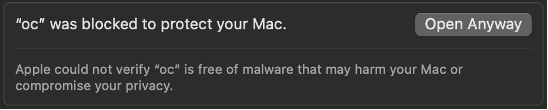
  4. If you are on a Mac, follow the same steps performed earlier with oc to allow virtctl to run.

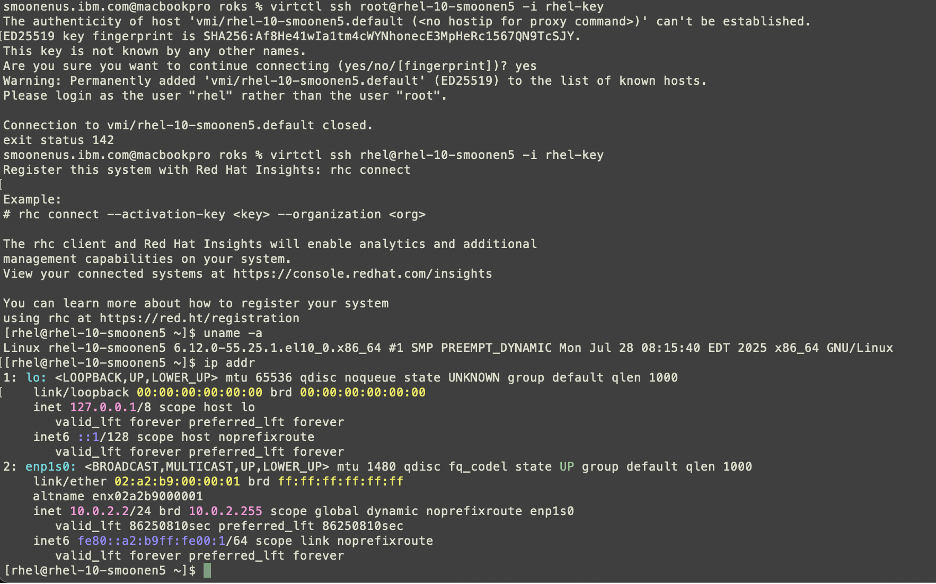
Here you can see me connecting to my virtual machine.

Performance

Be sure to read Neil Taylor’s blog posts referenced in the first post in this series, which explain why this has an address of 10.0.2.2.

As it stands it can reach out to the public network, since I configured a public gateway on the worker nodes’ subnet. Although I believe I have entitlement to run RHEL on these workers, the VM is not initially connected to a Satellite server or to any repositories. I wanted to run a quick iperf3 test, but this makes it not as simple as doing a yum install. I was able eventually to snag libsctp and iperf3 RPMs and ran a simple test. Compared to a VMware VM running on VPC bare metal, the ROKS VM gets comparable throughput on iperf3 tests to public servers.

As I receive more insight into the RHEL entitlement I will document this.

Inbound connectivity to VM

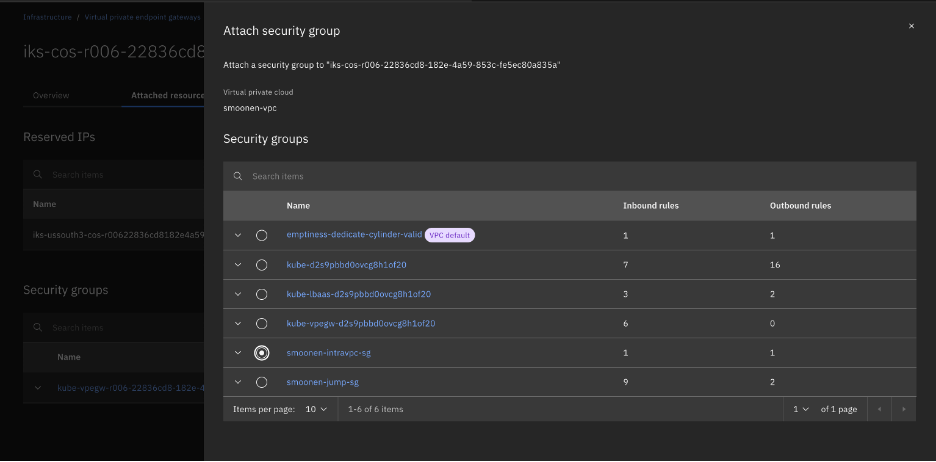
NLB (layer 4) does not currently support bare metal members. Therefore we need to create an ALB (layer 7). I created a public one just to see how that works. I’m reasoning through what I need to build based on Neil’s blog and IBM Cloud documentation.

Here is the YAML I constructed:

apiVersion: v1
kind: Service
metadata:
  name: smoonen-rhel-vpc-alb-3
  annotations:
    service.kubernetes.io/ibm-load-balancer-cloud-provider-ip-type: "public"
    # Restrict inbound to my IPs
    service.kubernetes.io/ibm-load-balancer-cloud-provider-vpc-security-group: "smoonen-jump-sg"
spec:
  type: LoadBalancer
  selector:
    vm.kubevirt.io/name: rhel-10-smoonen5
  ports:
  - port: 22
    protocol: TCP
    targetPort: 22

Importantly, you should not specify the service.kubernetes.io/ibm-load-balancer-cloud-provider-vpc-lb-name annotation; what IBM Cloud calls a persistent load balancer. This reuses an existing load balancer of that name if it exists. So, for example, if you have a scenario where you are testing restore of an application to a new and temporary namespace, it will hijack the load balancer for your running application.

After provisioning this, I was able to successfully SSH into my VM with the load balancer resource that was created.

OpenShift Virtualization on IBM Cloud, part 3: Deploying and configuring ROKS, ODF, and OCP Virt

See all blog posts in this series:

  1. OpenShift Virtualization on IBM Cloud, part 1: Introduction
  2. OpenShift Virtualization on IBM Cloud, part 2: Becoming familiar with VPC
  3. OpenShift Virtualization on IBM Cloud, part 3: Deploying ROKS, ODF, and OCP Virt
  4. OpenShift Virtualization on IBM Cloud, part 4: Creating a virtual machine
  5. OpenShift Virtualization on IBM Cloud, part 5: Migrating a virtual machine
  6. OpenShift Virtualization on IBM Cloud, part 6: Backup and restore
  7. OpenShift Virtualization on IBM Cloud, part 7: Dynamic resource scheduling

In this article we will work through the steps of creating a ROKS cluster, deploying and configuring prerequisites for OpenShift Virtualization, and installing OpenShift Virtualization.

Create ROKS instance

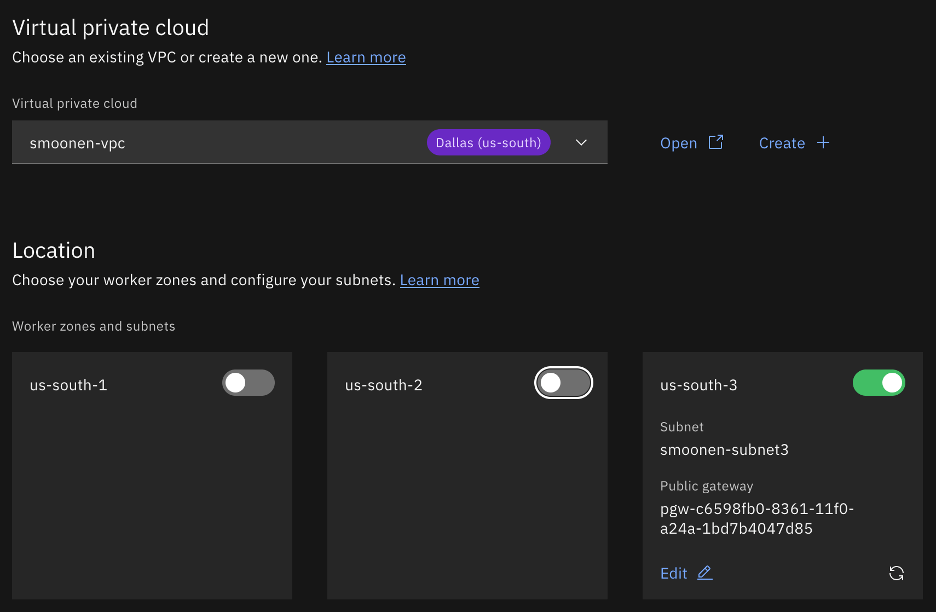
Click on the IBM Cloud hamburger menu and select Containers | Clusters. Click Create cluster. Ensure that RedHat OpenShift is selected and VPC is selected. Choose your VPC and select the region and zone(s) of interest. For the purpose of my testing I am creating a single zone.

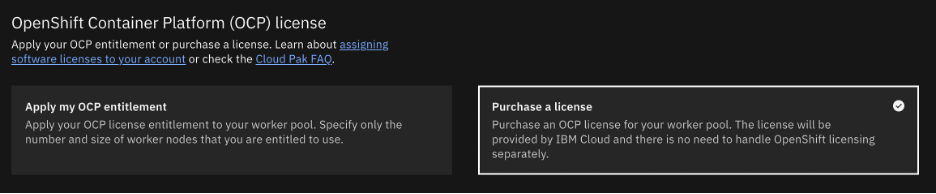
Select OCP licensing as you require. In my case I needed to purchase a license.

Take care in your selection of worker nodes. Currently virtualization is supported only with bare metal worker nodes. In my case I selected three bare metals each with some amount of extra storage which I will use for Ceph/ODF software-defined storage.

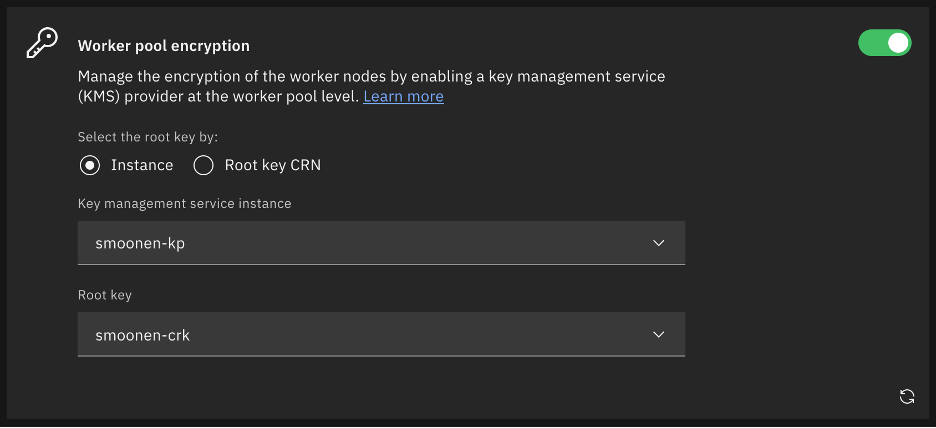
If you wish, encrypt your worker node storage using Key Protect.

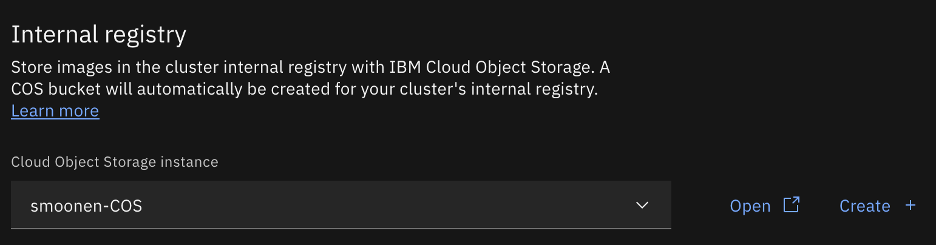
I chose to attach a Cloud Object Storage instance for image registry.

I thought at first that I would enable outbound traffic protection to learn how to make use of it. However, the OpenShift Virtualization operator documentation indicates that you should disable it.

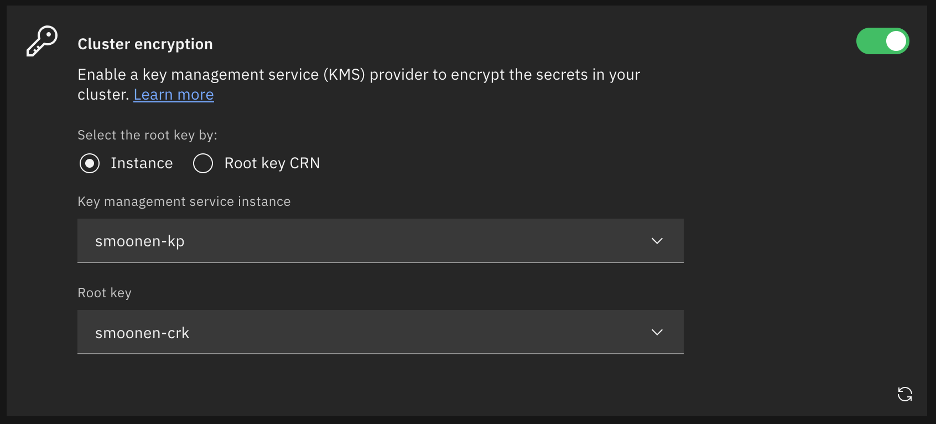
I selected cluster encryption as well.

At present I chose not to leverage ingress secrets management or custom security groups.

Enable activity tracking, logging, and monitoring as needed, then click Create.

Note: it is wise to open a ticket to ask for assistance from IBM Cloud support to check for bare metal capacity in your chosen VPC region and zone. In my case my first deployment attempt failed as insufficient bare metals of my selected flavor were available in the zone; this is why I have a jump server in zone 1 but workers in zone 3. Although my second deployment had one host fail, this was not due to capacity but apparently to an incidental error. Redeploying a new worker in its place worked fine. It’s difficult to assess the total deployment time in light of these errors, but I would guess it was somewhere between 2-3 hours.

Check NVMe disks

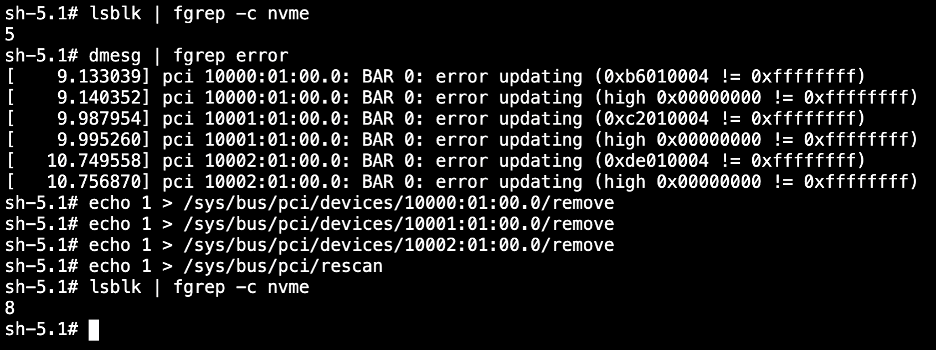
At the time of this writing, recent CoreOS kernel versions appear to have a bug where several NVMe drives are not properly mounted. After the cluster is provisioned, login to the OpenShift web console and use the Terminal feature on each host to display whether your system has all of its NVMe disks. For example, the profile I deployed should have 8 disks. If there are missing disks, follow the steps in the screenshot below to rediscover them, using the ids from the error messages.

Once your drives are all present, you can proceed to install OpenShift Data Foundation (ODF), which is currently a requirement for OpenShift Virtualization.

Install OpenShift Data Foundation (ODF)

ODF is a convenient wrapper for software-defined storage based on Ceph. It is the OpenShift equivalent of VMware vSAN. In this case I’m deploying a single zone / failure domain, with a default configuration of 3-way mirroring, but ODF is able to provide other configurations including multiple zonal fault domains.

Because it must be licensed and in order to provide other custom integrations with IBM Cloud, the ODF installation is driven from the IBM Cloud UI rather than from the OpenShift OperatorHub. In the IBM Cloud UI, on your cluster’s Overview tab, scroll down and click Install on the OpenShift Data Foundation card.

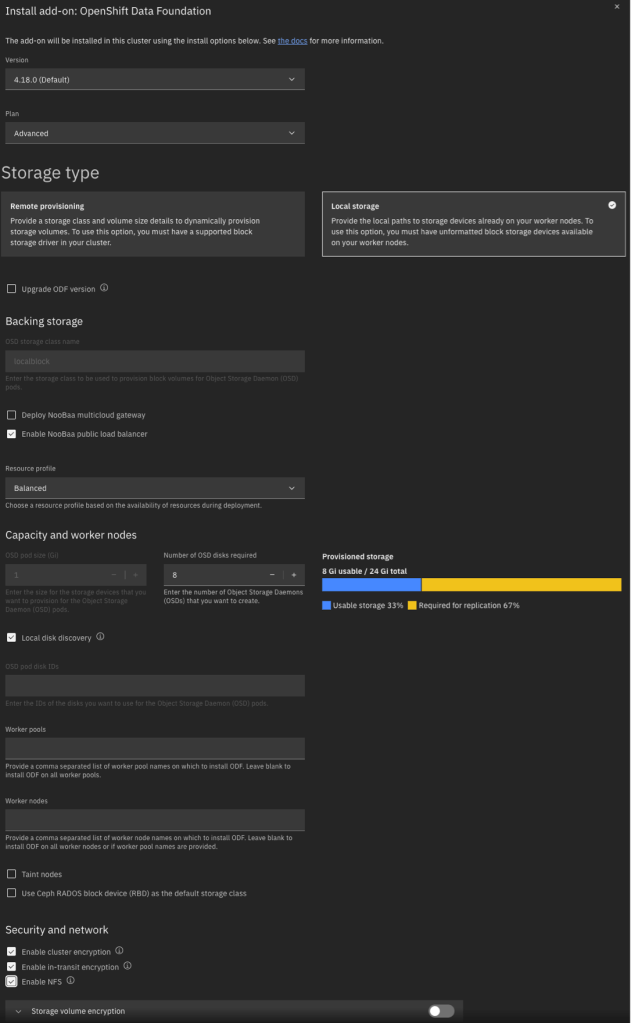
Below is an example of the input parameters I used. Note that I did not enable volume encryption because the integration with KP and HPCS was not clear to me. Most importantly, you should be careful with the pod configuration. For local storage, ignore the fact that the pod size appears to be 1GiB. This simply indicates the minimum claim that ODF will attempt; in reality it will be greedy and will make use of your entire NVMe drive. Also for the number of pods, specify the number of NVMe disks on each host that you want to consume. Although I have three hosts, I have 8 NVMe disks on each host and wish to use all of them. For this reason I specified a pod count of 8.

Note that it takes some time to install, deploy, and configure all components.

Install OpenShift Virtualization

After the ODF installation completes, you need to install the OpenShift Virtualization operator using the OpenShift CLI (oc). Although the IBM Cloud CLI has an “oc” operator, this is not a proxy for the oc CLI but rather an alias for IBM’s ks plugin. I performed the following steps:

First, in the IBM Cloud UI, click through to the OpenShift web console. In the top-right corner, click the ? icon and choose Command Line Tools. Download the tool appropriate to your workstation.

In my case, on MacOS, I had to override the security checks for downloaded software. I attempted to run oc and received an error. I then opened the System Settings app, selected Privacy & Security, scrolled to the bottom, and selected “Open Anyway” for oc.

Then, in the IBM Cloud UI, I clicked through to the OpenShift web console. In the top-right corner I clicked on my userid and then selected Copy login command. Then I ran the login command on my workstation.

Finally, I followed the IBM Cloud instructions for installing the OpenShift Virtualization operator. Because I intend to use ODF/Ceph storage rather than block or file, I performed the step to mark block as non-default, but I did not install or configure file storage.

I have some thoughts on what the upgrade process might look like for ODF / Ceph when upgrading my cluster and worker nodes. I’m waiting for a new supported release of ODF to test these out and will post my experience once I’ve had a chance to test it.

OpenShift Virtualization on IBM Cloud, part 2: Becoming familiar with VPC

See all blog posts in this series:

  1. OpenShift Virtualization on IBM Cloud, part 1: Introduction
  2. OpenShift Virtualization on IBM Cloud, part 2: Becoming familiar with VPC
  3. OpenShift Virtualization on IBM Cloud, part 3: Deploying ROKS, ODF, and OCP Virt
  4. OpenShift Virtualization on IBM Cloud, part 4: Creating a virtual machine
  5. OpenShift Virtualization on IBM Cloud, part 5: Migrating a virtual machine
  6. OpenShift Virtualization on IBM Cloud, part 6: Backup and restore
  7. OpenShift Virtualization on IBM Cloud, part 7: Dynamic resource scheduling

Introduction

IBM Cloud offers the opportunity to create virtual private clouds, which are software-defined network bubbles where you provision cloud resources and infrastructure into a network address space allocated and managed by you. For some more background, read and watch “What is a virtual private cloud?

Our OpenShift resources will be provisioned into this VPC space. So first we need to create a VPC, and choose the network addressing. In addition, because this is a private network space, we will need to gain access to it. There are two common modes of access: VPN, and jump server. For the purposes of my experiment I created a jump server, which will also help to introduce us to some VPC concepts.

In this article I show you how to create an IBM Cloud VPC and jump server VSI (virtual server instance; i.e., virtual machine) using the IBM Cloud UI. Of course, you can also use the IBM Cloud CLI, APIs, or SDKs to do this as well. I have on GitHub samples of Python code to create a VPC and to create a jump server.

Create a VPC

After logging in to your IBM Cloud account, click the “hamburger menu” button in the top-left, then select Infrastructure | Network | VPCs.

From the Region drop-down, select the region of your choice, and then click Create.

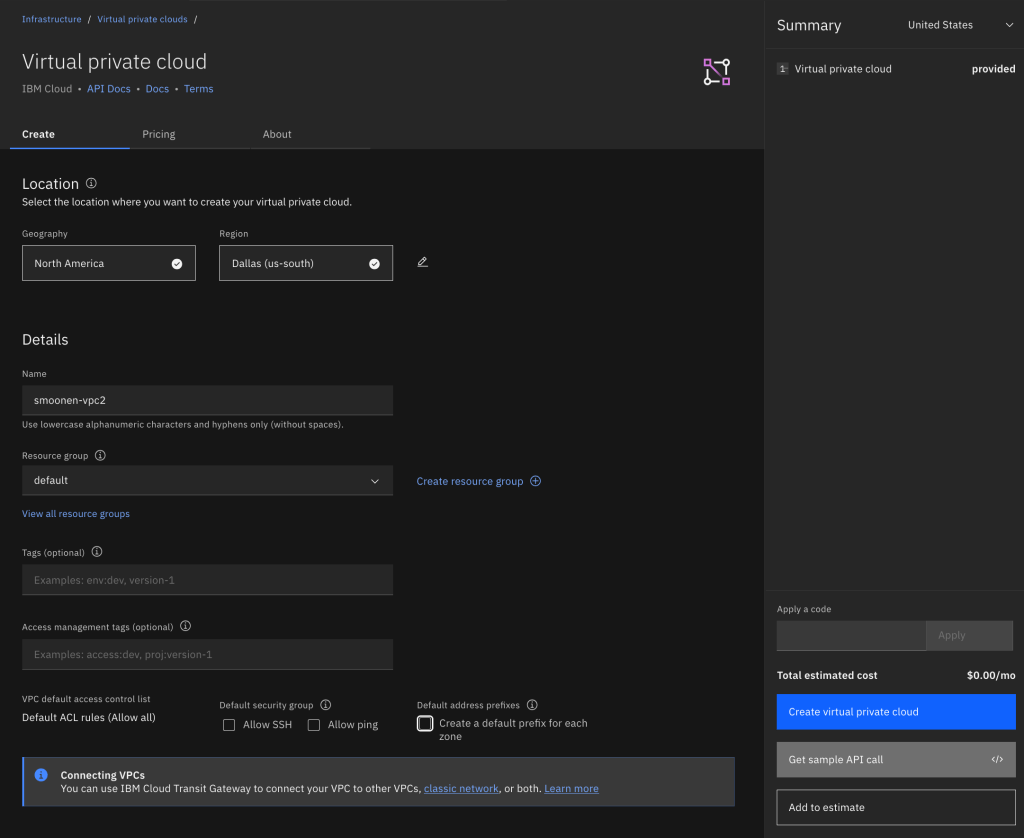
As it works currently, if you allow the VPC to create a default address prefix for you, the prefix will be automatically selected for you without your ability to modify it. I prefer to choose my own address prefix and therefore I deselect this checkbox before clicking the Create button.

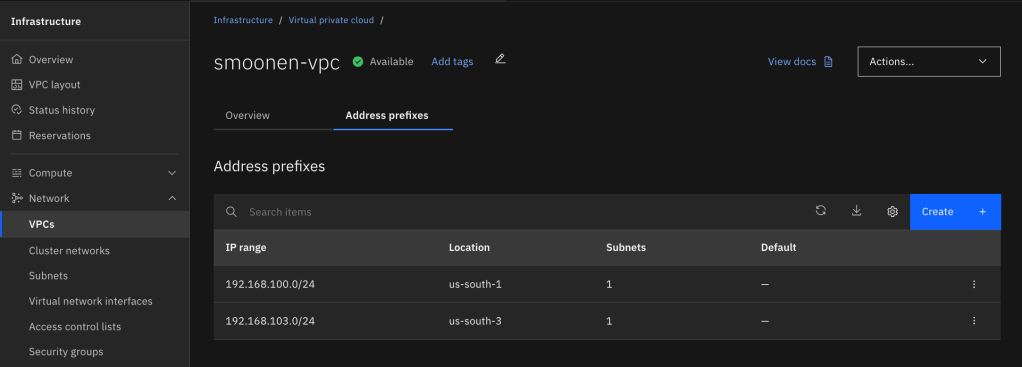
After creating your VPC, view the list of VPCs and click on your new VPC to display its details. Select the Address prefixes tab. For each zone where you plan to create resources or run workloads, create an address prefix. For example, I created a VSI in zone 1 and OpenShift worker nodes in zone 3, so I have address prefixes created in these two zones.

Interestingly, the address prefix is not itself a usable subnet in a zone. Instead, it is a broader construct that represents an address range out of which you can create one or more usable subnets in that zone. Therefore, you need to go to Infrastructure | Network | Subnets and create a subnet in each zone where you will be creating resources or running workloads. Note carefully that you choose the region and name of your subnet before you choose the VPC in which to create it. At that point you can choose which address prefix it should draw from. In my case I used up the entire address prefix for each of my subnets.

For your convenience, I also recommend that you choose to attach a public gateway to your subnet. The public gateway allows resources on the subnet to communicate with public networks, but only in the outbound direction.

Create a jump server

First you should create a security group to restrict access to the jump server. Navigate to Infrastructure | Network | Security groups and click Create. Ensure that your new VPC is selected, create one or more rules to represent the allowed inbound connections, and then create an outbound rule allowing all traffic.

Next, navigate to Infrastructure | Compute | Virtual server instances and click Create.

Select the zone and your new VPC. Note that the VPC selection is far down the page so it is easy to miss this. Choose your preferred operating system image; e.g., Windows Server 2025. Customize the VSI profile if you need more or different horsepower for your VM.
Unless you already have an SSH key, create a new one as part of this flow. The UI will save the private key to your system. Be sure to hold on to this for later.

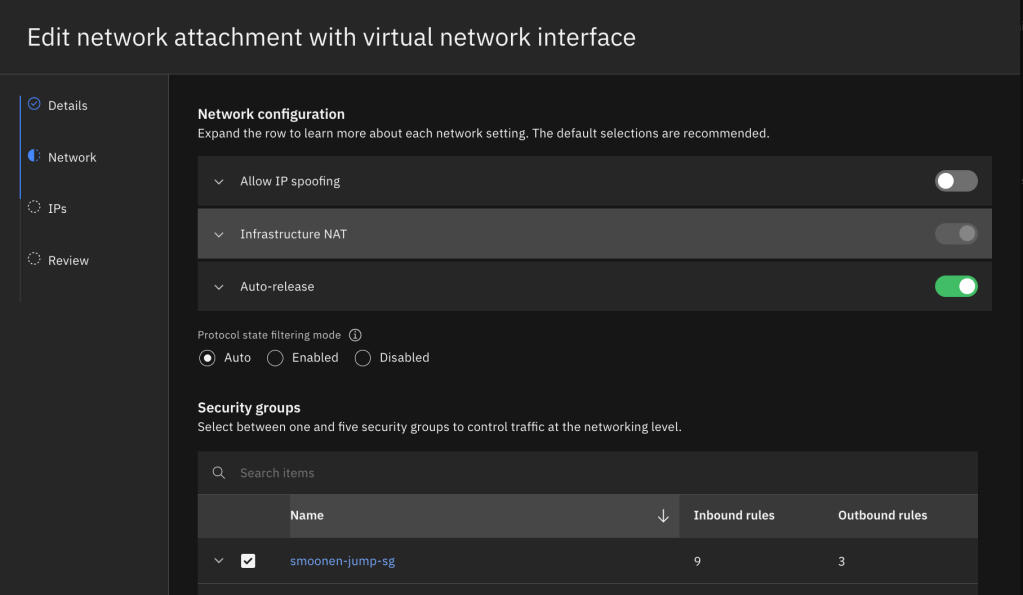
It is fine to take most of the default settings for network and storage unless you prefer to select a specific IP from your subnet. However, you do need to edit the network attachment and select the security group you created above instead of the VPC default group. You’ll notice that the creation of your VSI results in the creation of something called a virtual network interface, or VNI. The VNI is an independent object that mediates the VSI’s attachment to an IP address in your subnet. VNIs serve as an abstract model for such attachments and can be attached to other resources such as file storage and bare metal servers. You could elect to allow spoofing on your VNI (which would be necessary if you wanted your VSI to share a VIP with other VSIs or to route traffic for additional IPs and networks), and also to allow the VNI to continue to exist even after the VSI is deleted.

Click Create virtual server.

Jump server authentication

If you created a Linux jump server, you can use the SSH private key created earlier to connect to your jump server using SSH. However, if you created a Windows jump server, the Administrator password is encrypted using the SSH key you created earlier. Here is how you can decrypt the Administrator password using this key. Select your VSI. On the instance details panel, copy the VSI instance id.

Click the IBM Cloud Shell icon in the top right corner of the IBM Cloud UI. This will open a new tab in your browser. Ensure that your region of choice is selected.

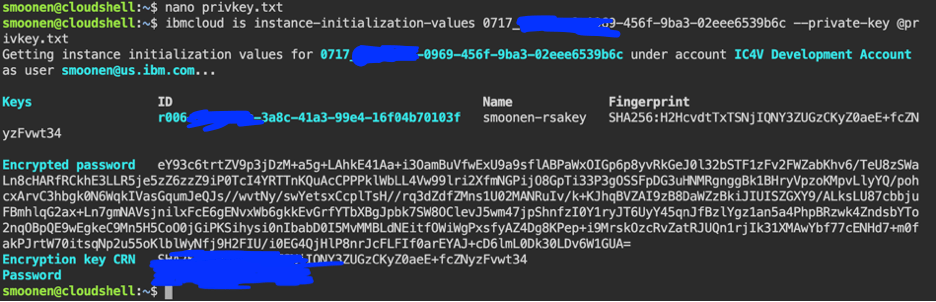
Within the IBM Cloud Shell in your browser, run a common editor to create a new privkey.txt file in the cloud shell; e.g., vi privkey.txt or nano privkey.txt. Locate the private key file that was downloaded to your system, copy its contents, paste them into the cloud shell editor, and save the file. Then run the following command in the Cloud Shell, substituting the VSI instance ID which is visible in the VSI details page:

ibmcloud is instance-initialization-values 0717_368f7ea8-0879-465f-9ab3-02ede6549b6c --private-key @privkey.txt

For example:

Public IP address

The last thing we need to do is assign a public IP to our jump server. Navigate to Infrastructure | Network | Floating IPs and click Reserve.

Select the appropriate zone, then select the jump server as the resource to bind to. Click Reserve. Note that we did not have to apply our security group at this point because it has already previously been applied to the VSI interface.

Note the IP that was created for you. You can now connect to your jump server using this IP and either the SSH key or password from earlier in this procedure.

OpenShift Virtualization on IBM Cloud, part 1: Introduction

See all blog posts in this series:

  1. OpenShift Virtualization on IBM Cloud, part 1: Introduction
  2. OpenShift Virtualization on IBM Cloud, part 2: Becoming familiar with VPC
  3. OpenShift Virtualization on IBM Cloud, part 3: Deploying ROKS, ODF, and OCP Virt
  4. OpenShift Virtualization on IBM Cloud, part 4: Creating a virtual machine
  5. OpenShift Virtualization on IBM Cloud, part 5: Migrating a virtual machine
  6. OpenShift Virtualization on IBM Cloud, part 6: Backup and restore
  7. OpenShift Virtualization on IBM Cloud, part 7: Dynamic resource scheduling

In the VMware world, there is presently a lot of interest in alternative virtualization solutions such as RedHat’s OpenShift Virtualization. In the past I’ve used RedHat Virtualization, or RHEV. RedHat has discontinued their RHEV offering and is focusing their virtualization efforts and investment in OpenShift Virtualization instead. In order to become familiar with OpenShift Virtualization I resolved to experiment with it via IBM Cloud’s managed OpenShift offering, RedHat OpenShift on IBM Cloud, affectionately known as “ROKS” (RedHat OpenShift Kubernetes Service) in my circles.

My colleague Neil Taylor was tremendously helpful in providing background information to familiarize myself with the technology for the purposes of my experiment. He has written a series of blog posts with the purpose of familiarizing VMware administrators like myself with OpenShift Virtualization and specifically the form it takes in IBM Cloud’s managed offering. If you are interested in following along with my experiment, you should read his articles first:

  1. OpenShift Virtualization on IBM Cloud ROKS: a VMware administrator’s guide to storage
  2. OpenShift Virtualization on IBM Cloud ROKS: a VMware administrator’s guide to networking
  3. OpenShift Virtualization on IBM Cloud ROKS: a VMware administrator’s guide to migrating VMware VMs to OpenShift Virtualization
  4. OpenShift Virtualization on IBM Cloud ROKS: Advanced Networking – A VMware Administrator’s Guide

I expect that in the future we will see IBM Cloud ROKS adopting the new user-defined networking capabilities that are coming to OpenShift Virtualization soon, but I expect it will take some time to operationalize these capabilities in the IBM Cloud virtual private cloud (VPC) environment. In the meantime I’m content to experiment with virtualization within the limits of Calico networking.

PowerCLI native key management capabilities, continued

I mentioned previously that PowerCLI allows you to rekey VM and VMHost objects natively without needing to use community-supported extensions. As far as I can tell, rekeying vSAN clusters still requires you to work in the UI or to use the community-supported extensions.

Examining the code for these extensions, I was able to put together a brief way to display the current key manager in use by each object. This way you can verify your rekeying is successful! Here is an example:

$vmlist = @()
foreach($vm in Get-VM) {
  $vmlist += [pscustomobject]@{ vm = $vm.name; provider = $vm.ExtensionData.Config.KeyId.ProviderId.Id}
}
$vmlist | Format-Table

$hostlist = @()
foreach($vmhost in Get-VMHost) {
  $vmhostview = Get-View $vmhost
  $hostlist += [pscustomobject]@{ host = $vmhost.name; provider = $vmhostview.Runtime.CryptoKeyId.ProviderId.Id}
}
$hostlist | Format-Table

$clusterlist = @()
$vsanclusterconfig = Get-VsanView -Id "VsanVcClusterConfigSystem-vsan-cluster-config-system"
foreach($cluster in Get-Cluster) {
  $encryption = $vsanclusterconfig.VsanClusterGetConfig($cluster.ExtensionData.MoRef).DataEncryptionConfig
  $clusterlist += [pscustomobject]@{ cluster = $cluster.name; provider = $encryption.KmsProviderId.Id }
}
$clusterlist | Format-Table

PowerCLI native rekey capabilities

In the past I’ve written about using some PowerCLI extensions from the community repository to rekey individual objects, to rekey all objects, and to migrate from one key provider to another. I’ve recently discovered that the native PowerCLI commands support rekeying of VM and host keys, although not vSAN keys.

It is straightforward to rekey a vSAN cluster using the vCenter UI, and this has the side benefit that it will rekey your host encryption keys as well. But if you want to rekey virtual machines or host encryption keys directly, you could use a script like the following without needing to install the community modules:

$kp = Get-KeyProvider new-kmip

foreach($vm in Get-VM) {
  if($vm.ExtensionData.Config.KeyId) {
    Set-VM $vm -KeyProvider $kp -Confirm:$false
  }
}

foreach($vmhost in Get-VMHost) {
  if($vmhost.ExtensionData.Runtime.CryptoState -eq "safe") {
    Set-VMHost $vmhost -KeyProvider $kp
  }
}

Authenticating with VMware Cloud Director using IBM Cloud IAM

If you are automating activities in VMware Cloud Director—for example, if you are using Terraform to manage your edges and deploy your vApps—you will typically create a Cloud Director API token, which your automation can use to create an authenticated login session with Director for subsequent API calls.

There are interesting complex automation use cases where you might want to create an automation pipeline stretching from the IBM Cloud APIs to the Cloud Director APIs. For example, you might want to use the IBM Cloud APIs to provision a virtual data center (VDC) and then use the Cloud Director APIs—perhaps using Terraform—to deploy a vApp in that VDC. In cases like this, you prefer not to interrupt your automation to create your Cloud Director API token; instead, you want to be able to authenticate with Cloud Director by means of your IBM Cloud API key. Fortunately, that is possible because IBM preconfigures your Director organization with OIDC SSO integration with IBM Cloud IAM.

There are two ways to approach this. Most straightforwardly, if you are a REST API user, you can take the IBM Cloud IAM token that you got in exchange for your IBM Cloud API key, and submit this to Director as an OAuth identity provider token to authenticate a new login session and receive a Director bearer token for that session. You can then use this Director bearer token to make Director API calls for the length of that login session. Alternately, you can further use that Director bearer token to make an API call to create a long-lived Director API token, which you can then provide to tooling like Terraform in order to conduct ongoing management of your VDCs and other Director resources.

I’ve created two sample scripts demonstrating how this works. The first script obtains the Director bearer token and then uses this to call a Director API to list all vApps in each Director instance. Here is an example of its use:

smoonen@smoonen vmware-solutions % python3 get-vapps.py
Site: 'https://dirw003.eu-gb.vmware.cloud.ibm.com' / Organization 'd568ebe2-4042-4bc3-82c2-a3a7935cf9b9'
  vApp: vm1-1adc17be-3a7a-4460-82a8-ce821d3f5612
  vApp: vm2-000a9834-0037-4fc7-b6fd-0b2ec0927a28
Site: 'https://dirw082.us-south.vmware.cloud.ibm.com' / Organization '577fbceb-23ce-4361-bd11-1797931cb69b'
  vApp: auto_vapp
  vApp: VM-WIN-1ebfec4b-d754-4f6c-8ef9-e1adab14900b
Site: 'https://dirw003.ca-tor.vmware.cloud.ibm.com' / Organization '44445dba-16f0-488f-842c-a184f8b1d4e2'
  vApp: vm-1-39534998-c323-4484-9246-df57b258216e
  vApp: vm-2-330f574e-868b-45ae-934f-df007f2a30d8
  vApp: vm-3-3855594d-ce3b-4de7-8a81-8f4dcbc87a5b
Site: 'https://dirw003.us-east.vmware.cloud.ibm.com' / Organization '3bb02c20-e9df-4b39-ab76-94d43567add7'
  vApp: test-2de106b7-9107-40b8-9ec1-2287046df186

Interestingly, IBM Cloud service IDs are also represented in the Director OIDC SSO. You can create a service ID, and provided you have assigned the service ID sufficient IAM permissions to your VCF as a Service resources, you can use an IAM token generated from the service ID’s API key to authenticate with Director and call Director APIs.

IBM Cloud trusted profiles do not support the creation of API keys. However, trusted profiles are allowed to login to Cloud Director. In order to authenticate your trusted profile with Cloud Director (and possibly to create a Director API token) you will need to extract your trusted profile IAM token by other means than exchange of an API key. If you login to your trusted profile using the ibmcloud CLI (or by means of the IBM Cloud shell), you can extract your IAM token by this means:

scott_test@cloudshell:~$ ibmcloud iam oauth-tokens | grep IAM | cut -d \: -f 2 | sed 's/^ *//'
Bearer eyJraWQiOi. . .aZoC_fZQ
scott_test@cloudshell:~$

My second script uses the alternate approach of leveraging the Director bearer token to create a long-lived Director API token, in this case for each Director instance to which your user has access. Here is an example of its use:

smoonen@smoonen vmware-solutions % python3 create-director-tokens.py
Site: 'https://dirw003.eu-gb.vmware.cloud.ibm.com' / Organization 'd568ebe2-4042-4bc3-82c2-a3a7935cf9b9'
  token: leTf. . .TIs5
Site: 'https://dirw002.eu-de.vmware.cloud.ibm.com' / Organization 'ba10c5c7-7e15-41b5-aa4c-84bd373dc2b1'
  token: CL9G. . .IJRY
Site: 'https://dirw003.ca-tor.vmware.cloud.ibm.com' / Organization '44445dba-16f0-488f-842c-a184f8b1d4e2'
  token: p9cx. . .LdGt
Site: 'https://dirw082.us-south.vmware.cloud.ibm.com' / Organization '577fbceb-23ce-4361-bd11-1797931cb69b'
  token: ygc7. . .FVjB
Site: 'https://dirw003.us-east.vmware.cloud.ibm.com' / Organization '3bb02c20-e9df-4b39-ab76-94d43567add7'
  token: UCIf. . .aPBE

The Director APIs to create these long-lived tokens are not well documented. But essentially what is happening here is that we are creating an OAuth client ID and obtaining the refresh token for that client.

Running vCloud Usage Meter in IBM Cloud

Running vCloud Usage Meter in IBM Cloud

In 2024, Broadcom simplified VMware product pricing and packaging. The VMware Cloud Foundation (VCF) offering now encompasses a wide variety of VMware software and features, with a relatively smaller number of software and features being sold as add-ons. As part of this simplification, Broadcom required all customers and cloud providers to make new commitments and to create new license keys.

Cloud providers are uniquely entitled for on-demand licensing of VMware products beyond their contract commitment. In exchange for this benefit, Broadcom expects that the vCloud Usage Meter product “must be used” to monitor and report usage of VMware products. IBM secured an extension of this requirement so that we could update our automation and develop integration points for our customers. IBM has now released updated VMware license keys and Usage Meter support, and IBM’s customers are expected by Broadcom—and therefore by IBM—to “immediately” install these in order to remain entitled to VMware software. . . . read more at Updates to VMware license keys and the use of vCloud Usage Meter in IBM Cloud

Using vSphere Trust Authority to geofence workloads

IBM and Kyndryl have in the past used Entrust BoundaryControl to accomplish geofencing. This worked using a combination of their CloudControl and KeyControl products. The CloudControl product was used by security administrators to install cryptographically signed tags into known trusted host TPMs, and then to describe policies for virtual machines that required them to run on hosts with particular tags. In addition to CloudControl enforcing virtual machine placement, the KeyControl product further integrated with this configuration to ensure that virtual machines running on unapproved hosts could not be successfully decrypted and run. Customers could devise tagging schemes according to their needs, such as prod/nonprod, tier1/tier2, and US/EU.

You can accomplish a similar kind of exclusion or geofencing capability using VMware’s vSphere Trust Authority. Although vTA is designed primarily as a means of ensuring that workloads run on hosts with known trusted firmware and software levels, it also has the capability to trust hosts individually. Rather than trusting the vendor TPM CA certificate, you can trust individual host TPM certificates. This allows you to vet the hosts one by one in your environment, and mark them as trusted only if they meet your criteria, including their geographic location. vTA will then help to ensure that the virtual machines in your environment cannot be successfully decrypted and run on hosts outside of your trusted set.

Like any security solution, attestation and geofencing solutions like BoundaryControl and vTA require extra effort to configure and to administrate. In exchange for this effort, however, you can create compelling sovereign cloud solutions.

Estimating vDefend firewall usage

Here are a few key things to know about Broadcom’s vDefend firewall offering:

  • vDefend comes in three flavors: firewall, ATP, and firewall+ATP bundle. The ATP license is not designed to be used on its own, but only to stack ATP capability on top of firewall capability in cases where you have not purchased the bundle.
  • If you are using a vSphere 8 VCF solution key to activate NSX, you will need a vDefend “solution key” to activate vDefend features. Otherwise, if you are using a v7 or v8 component key to activate NSX, you will need to use separate vDefend “component keys” to activate the vDefend features on edges and in distributed firewall, respectively. For more information, see KB 318444.
  • Broadcom assesses vDefend for distributed firewall against the vSphere hosts in the same manner as VCF (i.e., with a floor of 16 cores per CPU). For distributed firewall you should order as many cores of vDefend as for VCF. For edge firewall, Broadcom assesses vDefend at a ratio of 4 cores per vCPU (including passive edge VMs). There is not a technical reason for this ratio; it is simply a business decision on Broadcom’s part.
  • If you are running NSX 4.1 or newer, Broadcom has recently published a script that you can use to survey your environment’s firewall configuration to measure how much vDefend licensing you need; see KB 395111. This script correctly takes into account some cases where Broadcom does not assess vDefend usage; for example, if gateway firewall is enabled but only the default permit-all rule is configured, or only stateless rules are configured.