From VMware to IBM Cloud VPC VSI, part 3: Migrating virtual machines

See all blog posts in this series:

  1. From VMware to IBM Cloud VPC VSI, part 1: Introduction
  2. From VMware to IBM Cloud VPC VSI, part 2: VPC network design
  3. From VMware to IBM Cloud VPC VSI, part 3: Migrating virtual machines
  4. From VMware to IBM Cloud VPC VSI, part 4: Backup and restore
  5. From VMware to IBM Cloud VPC VSI, part 5: VPC object model
  6. From VMware to IBM Cloud VPC VSI, part 6: Disaster recovery
  7. From VMware to IBM Cloud VPC VSI, part 7: Automation
  8. From VMware to IBM Cloud VPC VSI, part 8: Veeam Backup and Replication

In this blog post we’ll consider your options for a simple lift-and-shift migration of entire virtual machines from VMware to IBM Cloud VPC VSI. Although this is a one-size-fits-all approach, it may not be the only option depending on your situation. For example, if you have a well-established practice of automated deployment, you should consider retooling your deployment process (eventually you will need to do this anyway) so that you can deploy entirely new virtual machines in IBM Cloud and migrate your data, rather than migrating entire virtual machines.

There are no readily available warm migration approaches to migrate VMware workloads to IBM Cloud VPC VSI. You should plan for a sufficient outage window that includes stopping the original virtual machine, possibly exporting its disks, and transferring the disks at least once to the final destination.

Updated 2025–12–03: Change guidance on use of cloud-init; add notes on RedHat considerations; reorganize Windows considerations.

Updated 2026-01-23: Link to newly available additional resources.

Limitations

Currently you cannot create a VSI with more than 12 disks, nor can your VSI have a boot disk smaller than 10GB or larger than 250GB. If your boot disk is larger than 250GB you will have to restructure your VM before migrating it.

VPC VSI does not support shared block volumes. For some shared storage use cases, you may be able to leverage VPC file storage and attach it to multiple virtual machines (but note that IBM Cloud File Storage for VPC currently does not support Windows clients). This blog post does not address migration of such shared files to VPC file storage. If you have a need for shared block storage for use as a clustered file system, you could take the approach of deploying your own VSI and using it to expose an iSCSI target to other VSIs.

Using FSTRIM for your VSI is harmless but currently it does not have any effect.

Preparation

Broadly, you should prepare your system by (1) uninstalling VMware tools, (2) installing virtio drivers, (3) installing cloud-init, and (4) resetting the network configuration. IBM Cloud has existing documentation on migrating from classic VSI to VPC VSI which covers many of these points.

Note that because the initial setup of your VSI depends on cloud-init, this means that you should be prepared for it to modify certain parts of your system configuration as if it were a first-time boot even though this is not a true first-boot situation. For example, this could result in the resetting of your root or Administrator password, the re-generation of your authorized SSH keys, the reconfiguration of your SSHD settings, and the re-generation of host keys. You should carefully examine, customize, and test the cloud-init configuration and its side effects so that you are prepared for these.

Linux considerations

Installation of virtio is simpler on Linux than it is on Windows, to the degree that you could do so manually, but I still recommend that you use the virt-v2v tool in the steps described below.

If you are using RHEL and if you choose to obtain your license from IBM Cloud rather than to bring your own license (see further discussion below), the IBM Cloud VSI automation will expect to find your system registered with the IBM Cloud subscription and using the expected system UUID. You should check to be sure that you do not have a file /etc/rhsm/facts/uuid_override.facts that overrides the system’s UUID. Remove this file if it exists.

Your selected network configuration will be primed by a combination of cloud-init and DHCP, and you may also find that interface names change. Stale network configuration data can prevent the network configuration from fully initializing; for example, it could prevent your system from acquiring a default network route. You should clean out as much of the network configuration as possible. For example, on a typical RHEL 9 system, you should:

  • Remove files in /etc/sysconfig/network-scripts
  • Remove files in /etc/NetworkManager/system-connections
  • Check /etc/sysconfig/network and make sure that no GATEWAYDEV is specified

If your system is unable to establish network connectivity including a default route at the time of first boot, it’s possible that the cloud-init registration process will fail.

Windows considerations

For Windows there are a number of important considerations related to installation of virtio drivers. First, you must source the drivers from RedHat. One way to do so is to deploy a RHEL VSI, install the virtio-win package, and copy the ISO file installed with this package, which includes various operating system drivers. You can find some instructions here. I copied the ISO to my Windows VM, mounted it as a drive, and ran the virtio-win-gt-x64 and virtio-win-guest-tools programs from the ISO.

Second, it is not sufficient to install the drivers. Even if you install the virtio drivers into your Windows VM, the drivers are typically bound to the device and you will not simply be able to boot your VM as a VSI successfully. There are two possible approaches:

  1. One approach is to use Microsoft’s sysprep tool to generalize your virtual machine immediately prior to migrating it. IBM Cloud’s VSI documentation suggests this approach. This ensures that driver assignment is released, but it also has many side effects and limitations that you should review and be aware of. You can control and limit some of this behavior if you use the Windows System Image Manager to generate an unattended answer file directing sysprep‘s execution.
  2. Another approach is to use the libguestfs toolkit, describe in detail below, to prepare the image. This toolkit is the basis for RedHat’s Migration Toolkit for VMware (MTV) that we saw used to migrate virtual machines to RedHat OpenShift Virtualization, and it is capable of injecting virtio drivers and also forcing Windows to make use of them. There are some important caveats to using the libguestfs tools outside of an MTV contest, for which see below. If you take this approach, be sure to shut down your Windows system cleanly. The virt-v2v tool will not process a Windows VM if it was not stopped cleanly.

I have had success using both of these approaches to transfer Windows VMs to VSI. I prefer the latter approach.

Third, you need to be sure to install the drivers in both your boot disk and your recovery image; note especially that the virt-v2v tool will only help with your boot disk. The IBM Cloud documentation provides some notes on the recovery image. In my own testing, I found some additional caveats:

  • Your recovery image might not reside on a recovery volume; in fact, in my case, even though reagentc reported that it was on a recovery volume, that volume was empty and I found it in C:\Windows\system32\Recovery instead.
  • If your drive is formatted as GPT instead of MBR, then:
    • You may need to use list volume and select volume instead of list partition and select partition
    • Instead of setting the id to 07 and 27 to mark it as data versus system, you will need to set the id first to ebd0a0a2-b9e5-4433-87c0-68b6b72699c7, and afterwards to c12a7328-f81f-11d2-ba4b-00a0c93ec93b.

Fourth, you should note that IBM Cloud VSI has a special rule that causes it to present a Windows boot disk as a virtio SCSI device, while presenting all other volumes as virtio block devices. This is in contrast with non-Windows VSIs, all of whose volumes are presented as block devices. What this means to you is that if you use the libguestfs approach to install the virtio drivers, you must add a special parameter to force the boot drive to be SCSI: --block-driver virtio-scsi.

Fifth, note that RedHat provides virtio drivers for only the following versions of Windows:

  • Windows Server 2008 R2
  • Windows Server 2012
  • Windows Server 2012 R2
  • Windows Server 2016
  • Windows Server 2019
  • Windows Server 2022
  • Windows Server 2025
  • Windows 7
  • Windows 8
  • Windows 8.1
  • Windows 10
  • Windows 11

In addition to virtio considerations, ensure that you install cloudbase-init. Note that I have had fewer difficulties with network configuration on Windows compared to Linux.

VSI images and boot volumes

When you create a VSI, a boot volume for that VSI is created based on an existing image template. A boot volume is a special kind of storage volume that has some attributes indicating its intended processor architecture, operating system, etc. The boot volume also exists as a kind of space-efficient linked clone of the original image. There are some variations of this boot process where you could base your boot volume on alternate images (e.g., using a custom image, or using a snapshot of another boot volume as the image template), or even choose to use an existing boot volume that is not already attached to an existing VSI. Note that currently it is not possible to boot a VSI using an ISO image.

The combination of these capabilities gives us several possible approaches to importing your virtual machine’s disks:

Migration methods

There are four broad approaches to migrating your virtual machine to VSI:

  1. Export the VM disk, import it to IBM Cloud as an image, and boot your VSI using this image
  2. Export the VM disks, copy them to IBM Cloud volumes (optionally using virt-v2v to prepare the image), and boot your VSI
  3. Boot your VM using an ISO image that is capable of reading and transferring its disks to a location where you will copy them to IBM Cloud volumes (optionally using virt-v2v to prepare the image), then boot your VSI. Spoiler alert: this is my preferred method.
  4. Extract your VM directly from vCenter using virt-v2v VDDK capability to copy them to IBM Cloud volumes, and boot your VSI

The following image illustrates these approaches:

Understandably, there are a few caveats that you should be aware of. First we’ll discuss a few general caveats and then work through the various methods.

libguestfs use

Many of these migration approaches use the libguestfs toolkit, a powerful migration toolkit which includes the following capabilities:

  1. The virt-v2v tool is able to transform virtual machine images on your local disk, including the installation of virtio drivers.
  2. When built with the nbdkit VDDK plugin, the virt-v2v tool supports an efficient direct connection to vCenter and your vSphere hosts to extract your image and transform it to your local disk.
  3. The virt-p2v tool can be used as one of the ISO options when booting your source VM to connect to the location where the VM will be processed and copied to local disk.

However, there are some important caveats to be aware of:

  1. It appears to me that the libguestfs tools leverage qemu-kvm to run some of their logic in a virtual machine context with the disk(s) attached to that virtual machine. If you are running them on an IBM Cloud VSI, you should note that nested virtualization is not formally supported. I have not encountered any problems using it in my testing. You could also leverage a VPC bare metal server as your conversion worker if you prefer.
  2. If you are migrating a Windows VM, the virtio-win package that virt-v2v uses to install virtio drivers is available only on RHEL. You will need to do your work on RHEL or else copy the /usr/share/virtio-win tree from a RHEL system to your work location.
  3. The RHEL build of virt-v2v does not support the --block-driver virtio-scsi option which is required to prepare drivers for Windows systems in IBM Cloud. You will either need to build libguestfs yourself, or else run virtio-v2v on a system other than RHEL (e.g., Ubuntu).
  4. The RHEL build of libguestfs includes the nbdkit VDDK plugin, but the Ubuntu build does not. If you use Ubuntu you will either be unable to use the VDDK approach, or you will need to build libguestfs yourself.
  5. Ubuntu provides the virt-v2v-in-place command but RHEL does not. This command can be useful for some scenarios to avoid excess copying.
  6. The virt-v2v command usage only allows you to designate a destination directory for a VM’s disks, rather than destination files. So it does not naturally allow you to directly write the output to a /dev/vdX device. It is possible to trick it using symbolic links. So, for example, knowing that the virtual machine boot disk for smoonen-win will be named smoonen-win-sda, I can run the following:
ln -fs /dev/vdb /tmp/smoonen-win-sda
virt-v2v -i disk smoonen-win.img -o disk -os /tmp --block-driver virtio-scsi

General remarks about export

Not all of the methods we will discuss require you to export your virtual machine. But if you are exporting your virtual machine, there are some important considerations to be aware of.

If you are exporting a virtual machine from VCFaaS, you will need to stop your vApp and “download” it. This will initiate the download of an OVA file. The OVA file is in ZIP format and its contents include an OVF descriptor for your virtual machine(s) as well as VMDK files for the VM disks. Extract the VMDK files for use in subsequent steps.

If you are exporting a virtual machine from vCenter, you will need to stop the virtual machine. Although the datastore browser allows you to download the VMDK file directly from the VM folder, it seems to me that this approach ends up with a thick-provisioned VMDK. Instead I recommend using Actions | Template | Export OVF Template, which seems to preserve thin provisioning.

Method 1: import an exported virtual machine to VSI image

If your virtual machine has only one disk, a naive approach is to create an image template from your VMDK file and then boot a new VSI using this image. This approach is relatively simple and the VPC VSI documentation discusses how to do it. For a VMDK file, the steps are as follows:

  1. Convert VMDK to QCOW2, for example: qemu-img convert -f vmdk -O qcow2 smoonen-ubuntu-1.vmdk smoonen-ubuntu-1.qcow2
  2. Go to IBM Cloud console and navigate to Infrastructure | Storage | Object Storage
  3. Find your existing COS instance and bucket or create a new one
  4. Click Upload. You will need to either enable large file web uploads, or else install and use Aspera to upload the qcow2 image.
  5. There are multiple ways to expose the image to the VPC image service. The simplest is to enable public object reader access for your COS bucket.
  6. Navigate to Infrastructure | Compute | Images
  7. Select your desired region
  8. Click Create
  9. Enter a name, e.g., smoonen-ubuntu-migrated
  10. Select COS and indicate your image URL
  11. Choose the appropriate OS type; note there are BYOL and non-BYOL options
  12. Select how to encrypt the image. Note that image encryption is independent of VSI disk encryption

There are, however, some caveats and downsides to this approach. As mentioned above, this only migrates a single disk, so you will need to use one of the techniques below for secondary disks. More importantly, this process is abusing the notion of an image, which is intended to serve as a reusable template. Instead, this approach creates a single image template for every single virtual machine. This is relatively inefficient and wasteful; William of Ockham would not approve.

Method 2: copy an exported virtual machine to VPC volumes

Instead of uploading your disk as a VPC image, you could write out your VM disks directly to volumes by temporarily attaching them to another VSI to perform this work. This process is slightly convoluted because you have to create and delete an ephemeral VSI just to create a boot volume in the first place. An optional first step in this process allows you to take advantage of linked clone space efficiency if you choose to upload your own virtual machine template as a custom VSI image. Here are the steps:

  1. Optionally, if you have a copy of the original disk template for your virtual machine, follow the process in method 1 above to import this template as a custom image. If you use this custom image as the basis for the boot volume in step 3 below, you will gain some storage efficiency from the linkage between the image and every boot volume that you create from it.
  2. Create a worker VSI with sufficient disk or secondary disk space to hold VMDK files as a working set. Copy your virtual machine VMDKs to this VSI.
  3. Create an ephemeral VSI that mimics your migrated VM, with appropriate OS and disk configuration. Network configuration can be throwaway. Note that by default this will be an IBM-licensed operating system unless you create and use a custom BYOL image.
    • Important: ensure that none of the volumes are configured to auto-delete
    • Important: ensure that the boot volume uses the general-purpose storage profile
  4. Delete this ephemeral VSI. You have to do this in order to free up the volume(s) for attachment to your worker VSI.
  5. Attach the volume(s) to your worker VSI. If you have multiple volumes, note well the order in which they are attached. You can probe the volume size by using, for example:
    blockdev --getsize64 /dev/vdb.
  6. Convert the VMDK to raw format and write it to the block device, for example:
    qemu-img convert -f vmdk -O raw smoonen-ubuntu-1.vmdk /dev/vdb
  7. If you have chosen to use virt-v2v-in-place (or virt-v2v with a second copy) to transform your image (for example, to install virtio drivers) run it now.
  8. Spot check partition table: fdisk -l /dev/vdb. Note that if you have resized the boot disk, this may rewrite the backup GPT to the appropriate location.
  9. Flush buffers: blockdev --flushbufs /dev/vdb
  10. Detach the volume(s) from your worker VSI.
  11. Create a new (again) VSI for the migrated VM with appropriate network, OS, and disk configuration. Instead of booting from an image, you will boot from the existing boot volume you created in step 3 and populated in step 6.
    • Important: Currently the IBM Cloud UI does not allow you to attach existing secondary volumes. You can do this using the IBM Cloud CLI or API, or if you wish to use the UI, you could stop the VSI, attach the volume, and then restart it.
    • Important: You must select an SSH key which will be provided to cloud-init
  12. Expand or add partition to your boot volume if you had to resize it upwards.

Method 3: ISO boot virtual machine to copy to VPC volumes

As a variation on the previous method, instead of exporting your virtual machine disks, you could boot your virtual machine using an ISO that is capable of reading the disks and transferring them to your worker VSI that will process them and copy them to VPC volumes. This approach is inspired by the old GHOST tool.

In order to do this, you will likely need to create an IBM Cloud Transit Gateway to connect your source environment (whether in IBM Cloud classic or in IBM Cloud VCFaaS) to the destination VPC where your worker VSI lives. This enables direct network connectivity between the environments.

One approach, noted above, is to use the virt-p2v tool to generate a boot disk from which you will initiate a network connection to your virt-v2v worker to transfer your virtual machine disks.

You could also boot your virtual machine using your preferred (ideally tiny) Linux distribution such as TinyCore Linux, or using a tool such as G4L. However, note that the smaller the distribution, the more likely it is that you would need to customize it or connect it to public repositories to include needed tools. (For example, I found that TinyCore Linux was missing openssh and qemu packages out of the box.) In my case, I had an Ubuntu install ISO handy, and so I attached that to my original virtual machine and booted into it. For the Ubuntu install ISO, if you select the Help button you will find an Enter shell option that allows you to run commands.

The approach I took was to use the dd command to read and write the disks, combined with the gzip command to help with network throughput, combined with the netcat command to transfer over the network. On the destination worker VSI, I ran the following:

nc -l 192.168.100.5 8080 | gunzip | dd of=/dev/vdd bs=16M status=progress
fdisk -l /dev/vdd
blockdev --flushbufs /dev/vdb

On the source side, I had to configure networking, and then ran the following:

# Note that network device name may vary, e.g., depending on BIOS vs. UEFI
ip addr add 10.50.200.3/26 dev ens192
ip route add 0.0.0.0/0 via 10.50.200.1
dd if=/dev/sda bs=16M | gzip | nc -N -v 192.168.100.5 8080

After transferring the disk you could use virt-v2v-in-place or virt-v2v to further transform the disk. Then, as with method 2, you should detach the volumes from your worker VSI and create the VSI that will make actual use of them.

This method is my favorite method, partly because of its efficiency (export of VMDK and OVA is inefficient) and partly because of its flexibility.

Method 4: Direct copy to VPC volumes using VDDK

As noted above, it is possible to leverage virt-v2v together with the VMware VDDK toolkit to connect to vCenter and vSphere and directly fetch the virtual machine disks to your worker VSI as well as performing other virt-v2v processing such as installation of virtio drivers. This is quite convoluted due to competing RHEL and Ubuntu limitations, and so it is not currently my preferred method, but it is possible to get it working. This method is available only if you have access to vCenter; it is not applicable to VCFaaS.

You may need to input your vCenter and vSphere hostnames into /etc/hosts to ensure this works. You will also need to know or discover the specific host on which your virtual machine is running. Here is an example command invocation. Note that your vCenter password is specified in a file, and your userid needs to be expressed in domain\user form. You’ll also need to determine the vCenter certificate thumbprint.

virt-v2v -ic vpx://vsphere.local\%5cAdministrator\@smoonen-vc.smoonen.example.com/IBMCloud/cluster1/host000.smoonen.example.com\?no_verify=1 \
 smoonen-win \
 -ip passwd \
 -o disk -os /tmp \
 -it vddk \
 -io vddk-libdir=vmware-vix-disklib-distrib \
 -io vddk-thumbprint=A2:41:6A:FA:81:CA:4B:06:AE:EB:C4:1B:0F:FE:23:22:D0:E8:89:02 \
 --block-driver virtio-scsi

Post-migration and other considerations

The processes outlined above are somewhat tedious. One implication of this is that you will need to carefully develop and test your process around this. This will also enable you to form an estimate of how long the process will take based on network and disk copy times. Portions of this process can be automated, and you can also perform migrations in parallel.

You may also want or need help in executing this. For this purpose, you could reach out to IBM Consulting. IBM Cloud also has partnerships with PrimaryIO and Wanclouds who can provide consulting services in this space.

Additional resources

My colleague Shinobu Yasuda has written a step-by-step VSI migration guide, including screenshots, demonstrating how he successfully migrated a variety of RHEL and Windows releases from vCenter to VPC VSI.

Previously, IBM Cloud published documentation exclusively recommending the image import method; IBM Cloud has recently published new documentation focused on direct migration to boot volumes, including the migration of VMDK files, the direct network transfer of VM disks, and direct connection to vCenter using VDDK.

From VMware to IBM Cloud VPC VSI, part 2: VPC network design

See all blog posts in this series:

  1. From VMware to IBM Cloud VPC VSI, part 1: Introduction
  2. From VMware to IBM Cloud VPC VSI, part 2: VPC network design
  3. From VMware to IBM Cloud VPC VSI, part 3: Migrating virtual machines
  4. From VMware to IBM Cloud VPC VSI, part 4: Backup and restore
  5. From VMware to IBM Cloud VPC VSI, part 5: VPC object model
  6. From VMware to IBM Cloud VPC VSI, part 6: Disaster recovery
  7. From VMware to IBM Cloud VPC VSI, part 7: Automation
  8. From VMware to IBM Cloud VPC VSI, part 8: Veeam Backup and Replication

For a VMware administrator, here are some key things to understand about IBM Cloud VPC networking:

  • The VPC network is a layer 3 software-defined network rather than a layer 2 network. Although your VSIs may believe they are interacting with a layer 2 network, this is not entirely true.
  • Every IP address that is intended for use by a virtual machine should be represented by a virtual network interface (VNI) that is assigned to the VSI. The VNI represents the linkage between the virtual machine and the IP address. You can assign secondary IP addresses to a VNI, and you can also assign a public “floating IP” to a VNI, which acts as both a SNAT and DNAT for that specific VSI with respect to the public internet. Depending on your instance profile, you could also assign more than one VNI to a VSI, which will be surfaced to the VSI as an additional NIC.
  • For outbound public network traffic (only), you can assign a private gateway to an entire subnet. All subnets in the same zone will share the same private gateway IP. This acts as a SNAT to the public internet.
  • It is also possible for a VNI to be the target of routed (private) traffic. To accomplish this, the VNI needs to have IP spoofing enabled, for outbound traffic; and for inbound traffic you need to configure static routes in your VPC targeting the VNI.
  • In addition to floating IPs, IBM also recently released support for public address ranges (PARs), which are routed public IPs. You can route an entire subnet to a VSI/VNI, if it has IP spoofing enabled, by means of static routing. You could use this, for example, if you wanted to use a firewall or gateway appliance to inspect or regulate public network traffic.
  • There is not a simple and reliable mechanism to share a VIP between multiple VSIs. Because of the need for static routing, using a routed IP for a VIP is not a viable approach unless you programmatically automate the reconfiguration of the static route. Floating VNIs are supported for VPC bare metal but not for VPC VSI. VPC offers application and network load balancers which can cover some of the potential use cases for a VIP. If you have the need to use a VIP for a firewall or gateway appliance, you should explore either the use of BGP as an alternative, or else consider deploying your appliance on a smaller bare metal profile where floating VNIs are supported.
  • VPC offers security groups as a mechanism to implement network segmentation. You can think of security groups as analogous to distributed firewall, but they are implemented somewhat differently compared to the idea of a simple enumerated ruleset. You can assign multiple security groups to an interface, any one of which might be allowed to pass traffic. Also, the rules of a security group can reference the group itself as a way of expressing “members of this group are allowed to exchange this traffic with me.” This can be a powerful way of constructing segmentation, but it can also easily lead to great complexity; it is not always obvious which traffic will be permitted to a device.
  • IBM Cloud’s transit gateway offering provides a means of connecting networks together. You can use it to connect multiple VPCs, but also to connect your VPC to your VMware workload.
    • In case you are connecting to a VMware workload living directly on IBM Cloud classic networks, you would connect your transit gateway to your classic account
    • In case you are connecting to a VMware workload living on an NSX overlay on IBM Cloud classic networks, you would connect your transit gateway to your NSX edges using GRE tunnels
    • In case you are connecting to a VMware workload living in VCF as a Service (VCFaaS), you would connect your transit gateway to your VCFaaS edge using GRE tunnels

As you plan a VMware migration to VPC VSI, transit gateway will likely provide the interconnectivity between your environments. Commonly, you should plan to move at least one subnet worth of virtual machines at a time, because you will not be able to stretch an individual subnet between your VMware and VPC environments.

You should also be aware that in every subnet, VPC strictly reserves the .0 address, the .1 address (which it uses as the gateway address), the .2 and .3 addresses, and the broadcast address. You cannot assign these addresses to your VSI VNI, and thus, even though VPC gives you the freedom to use private networks of your choice, you may still need to plan to re-IP some of your virtual machines on migration.

This is just a short list of key items. The VPC documentation is quite good and thorough; you should spend some time reviewing it to familiarize yourself with other concepts such as how Cloud Service Endpoints and Virtual Private Endpoints work, and to look at related offerings like DNSaaS and IBM’s load balancers.

It’s also worth exploring IBM Cloud’s solution library. There are many VPC patterns there. For example, the VPC hub-and-spoke pattern is a common pattern to leverage a transit VPC to provide gateway and firewall capabilities for multiple VPCs, whether they are connecting to each other, to an on-premises network, or to the public network.

From VMware to IBM Cloud VPC VSI, part 1: Introduction

See all blog posts in this series:

  1. From VMware to IBM Cloud VPC VSI, part 1: Introduction
  2. From VMware to IBM Cloud VPC VSI, part 2: VPC network design
  3. From VMware to IBM Cloud VPC VSI, part 3: Migrating virtual machines
  4. From VMware to IBM Cloud VPC VSI, part 4: Backup and restore
  5. From VMware to IBM Cloud VPC VSI, part 5: VPC object model
  6. From VMware to IBM Cloud VPC VSI, part 6: Disaster recovery
  7. From VMware to IBM Cloud VPC VSI, part 7: Automation
  8. From VMware to IBM Cloud VPC VSI, part 8: Veeam Backup and Replication

With the end of marketing of VMware on IBM Cloud, IBM’s customers are beginning to explore alternate virtualization solutions on IBM Cloud. I’ve written about one of these options in a blog series, OpenShift Virtualization on IBM Cloud. In this new series, I will discuss IBM Cloud’s virtual server instances (VSIs) in IBM’s virtual private cloud (VPC) environment: VPC VSI, for short.

These virtual machines are an attractive solution for a variety of reasons. First, the virtual private cloud is itself a software-defined network; if you have a relatively simple network architecture, you should be able to replicate it in your VPC without needing components such as gateway or firewall appliances. Second, IBM Cloud manages the hypervisor, storage, and network for you, manages the underlying capacity of all of these resources, and provides monitoring and observability capabilities for your virtual machines; this allows you to focus your investment on management of your workloads. Finally, IBM also optionally provides operating system licensing for you.

I’ve already written a brief introduction to VPC that includes instructions for provisioning a virtual machine. You should work through these steps if you want to familiarize yourself with the IBM Cloud VPC environment.

Instance profiles

One key thing to understand about VPC VSI is how virtual server profiles influence the total behavior of your virtual machines in IBM Cloud. IBM’s virtual server profiles tie together a number of attributes, including:

  1. CPU generation (generation 2 is Cascade Lake, generation 3 is Sapphire Rapids, and “flex” offers a discount in exchange for allowing IBM to schedule to a CPU generation of its choice)
  2. Number of virtual CPUs
  3. Amount of virtual RAM
  4. Amount of total network bandwidth allowed for the virtual machine
  5. Maximum number of network interfaces allowed for the virtual machine

Some profiles also offer virtualized GPUs. Confidential computing profiles offer the ability to leverage Intel SGX and TDX, but more importantly also offer the option of leveraging secure boot.

Note: UEFI mode and secure boot are not available on the generation 2 profiles. They are available on the generation 3 profiles and, interestingly, on the flex profiles.

Network bandwidth is somewhat complex and worth taking time to consider. Each profile has a limit on total network bandwidth. All virtual machine disks are network attached, and this total network bandwidth is allocated in a 3:1 ratio between virtual machine network traffic and storage traffic. (You can adjust this ratio after provisioning your instance.) Many profiles allow for a “pooled” allocation of the storage traffic, meaning that if you have more than one disk, the VM is able to share its total storage allocation across all disks instead of balancing them in a fixed ratio. If pooled allocation is available for your profile, you should choose it. Note that even if you pool your allocation, your boot volume will be guaranteed a minimum allocation of network bandwidth.

By default, IBM’s virtual server profiles guarantee a 1:1 ratio of virtual CPU to hyperthreaded core on the underlying physical machine. Most VMware administrators are accustomed to planning for a vCPU:pCPU ratio between 4:1 or 8:1. At the time I am writing this, IBM is introducing burst capability for profiles; which, depending on the profile, allows for oversubscription ratios of 2:1, 4:1, and 10:1. Each of these profiles is guaranteed that minimum ratio, and is allowed to burst up to twice that guarantee. This capability is in beta at present so it is not enabled for all accounts, but I expect it to be rolled out more widely in the coming months. With the oversubscription comes improved pricing. For the time being, burst capability is limited to flex profiles, meaning that you cannot guarantee which processor generation your machine runs on.

Storage profiles

IBM Cloud offers a variety of storage profiles for your virtual server’s disk volumes. There are two sets of storage profiles. The first-generation storage profiles are named general-purpose, 5iops-tier, 10iops-tier, and custom. For a boot volume, only general-purpose is available. IBM’s second-generation storage profile is named sdp and provides both increased IOPS as well as more fine control of IOPS.

Currently, the sdp profile has some important limitations compared to the first-generation profiles:

  1. sdp volumes can only be snapshotted individually, not as part of a consistency group.
  2. sdp volumes cannot reliably detect a GPT formatted volume and may boot to BIOS rather than UEFI. For this reason I recommend you do not use them for boot volumes, and in fact you must not use them if you are leveraging secure boot.
  3. sdp volumes are not available in every region (notably, Montreal is excluded, and they may also not be immediately available when the recently announced Chennai and Mumbai regions become available)

For the time being I recommend against using sdp volumes for your virtual machines except in specific cases where you need the improved performance and can tolerate the lack of snapshot consistency groups. But keep watch; over time the capabilities of sdp volumes are expected to match and exceed those of first generation volumes.

OpenShift Virtualization on IBM Cloud, part 7: Dynamic resource scheduling

See all blog posts in this series:

  1. OpenShift Virtualization on IBM Cloud, part 1: Introduction
  2. OpenShift Virtualization on IBM Cloud, part 2: Becoming familiar with VPC
  3. OpenShift Virtualization on IBM Cloud, part 3: Deploying ROKS, ODF, and OCP Virt
  4. OpenShift Virtualization on IBM Cloud, part 4: Creating a virtual machine
  5. OpenShift Virtualization on IBM Cloud, part 5: Migrating a virtual machine
  6. OpenShift Virtualization on IBM Cloud, part 6: Backup and restore
  7. OpenShift Virtualization on IBM Cloud, part 7: Dynamic resource scheduling

For KubeVirt virtual machines, it’s possible to use pod affinity specifications to designate both affinity and anti-affinity rules for your virtual machines.

However, you have to take some extra steps to enable dyanamic resource scheduling (what in the VMware world is called DRS—distributed resource scheduler). After following these steps, the system will periodically rebalance your virtual machines, taking into account any affinity and anti-affinity rules as it does so.

Install and configure Descheduler

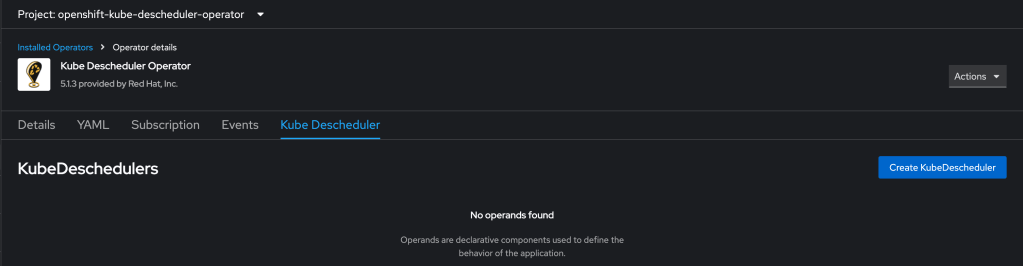
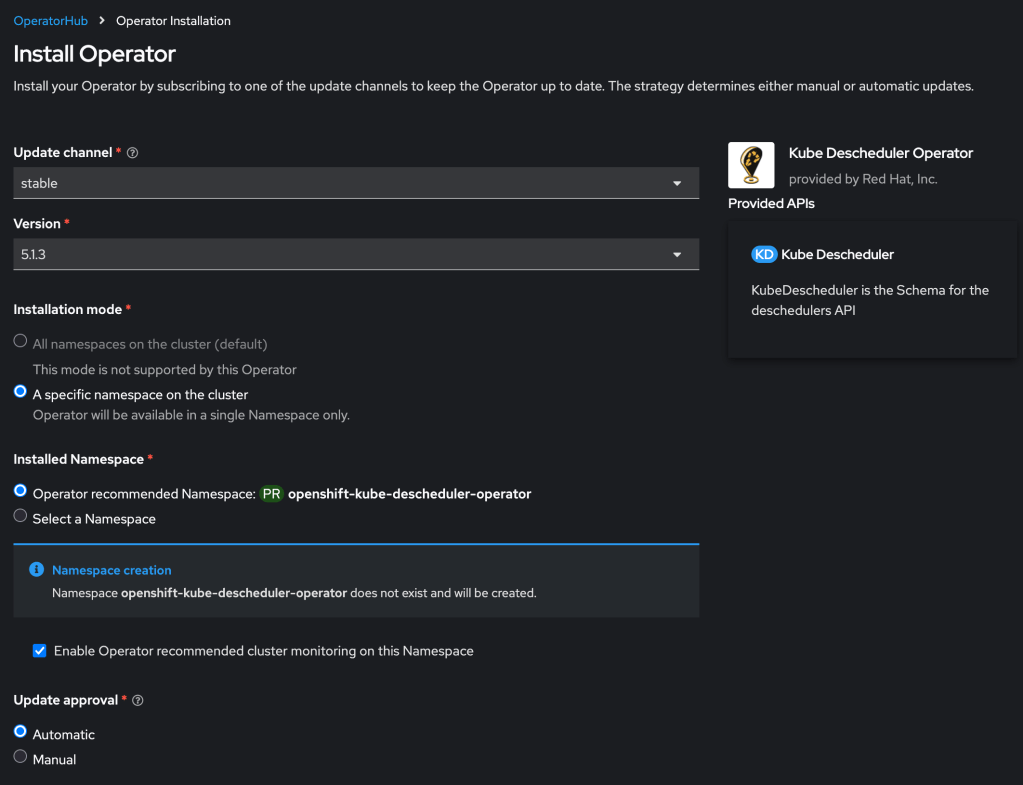
First you must install the descheduler tool which performs the dynamic scheduling. RedHat provides a supported form of this using their Kube Descheduler operator, which is available in your cluster in the OperatorHub.

Then you need to create a KubeDescheduler resource describing your rescheduling plan:

Working with the RedHat KubeDescheduler documentation and some failed attempts at experimentation, I crafted the following example definition. Note that currently this leverages two dev keywords that will be folded into the product formally over time.

kind: KubeDescheduler
apiVersion: operator.openshift.io/v1
metadata:
  name: cluster
  namespace: openshift-kube-descheduler-operator
spec:
  deschedulingIntervalSeconds: 300
  managementState: Managed
  mode: Automatic
  profiles:
    - AffinityAndTaints
    - DevKubeVirtRelieveAndMigrate
    - EvictPodsWithPVC
    - EvictPodsWithLocalStorage
  profileCustomizations:
    devEnableEvictionsInBackground: true

Disruption

Many people want to blame AI for significant disruption in the IT job market. I think this is true to a small degree, but it seems to me that it is not sufficient to explain what is going on.

I have personally wanted to blame a growing sort of rapacious value extraction. I think this is true to a moderate degree, and has various contributing factors relating to the watering down of Western Christendom; but I think this is also not sufficient to explain what is going on.

I recently stumbled across this blog post from Sean Goedecke: The good times in tech are over. Taken together with the considerations above, I think this has great explanatory power. Discretionary IT spending is naturally growing far more cautious.

In particular: in the SMB space you already see a pendulum swing away from cloud; consider the notable example of 37signals. Corresponding to this, large enterprises seem to be growing increasingly cautious with IT and cloud expenditure. Famously, for the past two years Hock Tan has insisted that his VMware customer base is largely interested in repatriation of public cloud workloads. This does not mean that cloud has no future whatsoever, but it does mean that some contraction and consolidation lies in the near future for public cloud.

OpenShift Virtualization on IBM Cloud, part 6: Backup and restore

See all blog posts in this series:

  1. OpenShift Virtualization on IBM Cloud, part 1: Introduction
  2. OpenShift Virtualization on IBM Cloud, part 2: Becoming familiar with VPC
  3. OpenShift Virtualization on IBM Cloud, part 3: Deploying ROKS, ODF, and OCP Virt
  4. OpenShift Virtualization on IBM Cloud, part 4: Creating a virtual machine
  5. OpenShift Virtualization on IBM Cloud, part 5: Migrating a virtual machine
  6. OpenShift Virtualization on IBM Cloud, part 6: Backup and restore
  7. OpenShift Virtualization on IBM Cloud, part 7: Dynamic resource scheduling

In this post we will leverage the OpenShift APIs for Data Protection (ADP) using Velero and Kopia to backup and restore our virtual machines.

Installation

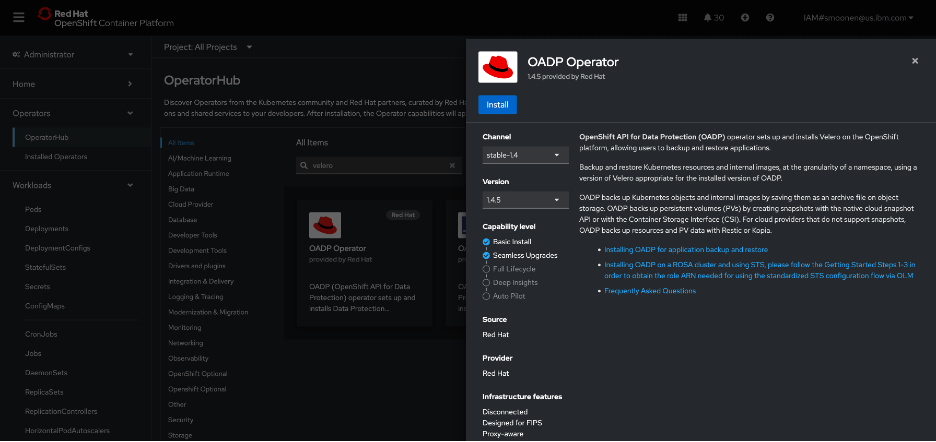
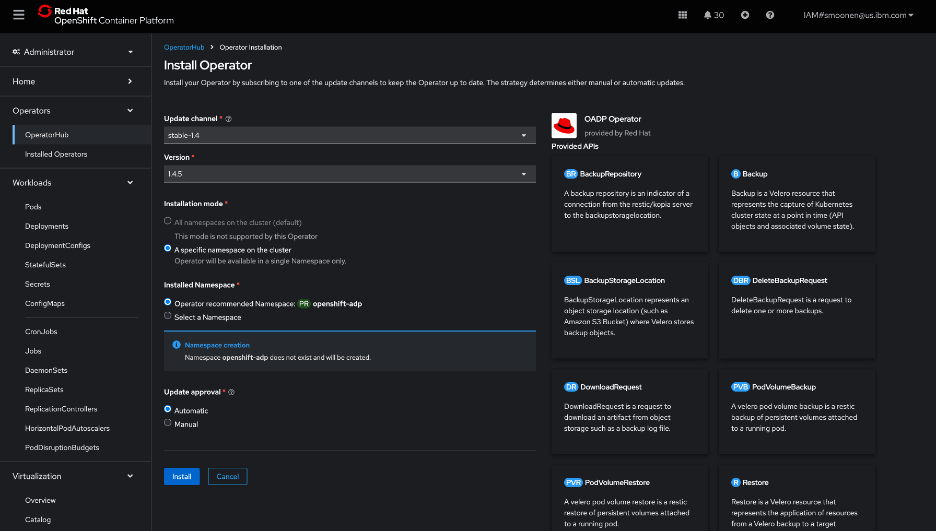
RedHat’s OpenShift APIs for Data Protection (OADP) leverages Velero to provide backup capabilities. In my OpenShift web console, I visited the OperatorHub and installed the RedHat OADP Operator.

I then created an IBM Cloud Object Storage bucket. I created a service ID and created HMAC credentials for it. For reference:

Following the OADP instructions, I created a credentials-velero file holding the HMAC credentials and a default secret based on it.

I then created and applied a DataProtectionApplication YAML modeled from the OADP instructions and including my bucket details. Some noteworthy points:

  • I used the VPC “direct” URL. Note that you need to prefix this URL with “https://”.
  • Note also that I have added the “kubevirt” plugin as we will be needing this later.
  • Kopia sems to be recommended as a preferred data mover for kubevirt over Restic. I have specified this below.
apiVersion: oadp.openshift.io/v1alpha1
kind: DataProtectionApplication
metadata:
  namespace: openshift-adp
  name: dpa-scotts-cos-bucket
spec:
  configuration:
    velero:
      defaultPlugins:
      - openshift
      - aws
      - csi
      - kubevirt
    nodeAgent:
      enable: true
      uploaderType: kopia
  backupLocations:
    - velero:
        provider: aws
        default: true
        objectStorage:
          bucket: smoonen-oadp-xy123d
          prefix: velero
        config:
          insecureSkipTLSVerify: 'true'
          profile: default
          region: us-south
          s3ForcePathStyle: 'true'
          s3Url: https://s3.direct.us-south.cloud-object-storage.appdomain.cloud
        credential:
          key: cloud
          name: cloud-credentials

I followed the steps to verify that this was deployed properly.

Next I created a schedule to run an hourly backup of the default namespace in which my new and migrated VM live. I could have chosen to provide a selector to backup specific VMs but for now I am not doing so. Notice that the defaultVolumesToFsBackup parameter is commented out; I had originally believed that this should be specified, but read on for some confirmation that this is not needed for ODF-backed virtual machines at least. Note also that this is a similar format to what is needed for a point in time backup, except that much of the configuration is here nested under template.

apiVersion: velero.io/v1
kind: Schedule
metadata:
  name: smoonen-hourly-backup
  namespace: openshift-adp
spec:
  schedule: 30 * * * * 
  template:
    hooks: {}
    includedNamespaces:
    - default
    storageLocation: dpa-scotts-cos-bucket-1
    snapshotMoveData: true
    #defaultVolumesToFsBackup: true
    ttl: 720h0m0s

I found that my backup was “PartiallyFailed.”

Browsing the controller logs, it appears that there were failures related to pods not being in running state. This was the case for me because I had some prior migration attempts failing for various reasons such as lack of access to the VDDK image.

I then installed the Velero CLI to see what additional insight it would give me. It seems to automatically integrate with oc. It is able to provide some insights, but interestingly, it attempts to extract some data from IBM Cloud Object Storage which it is unable to do because I am attempting to access using the direct URL from outside of a VPC.

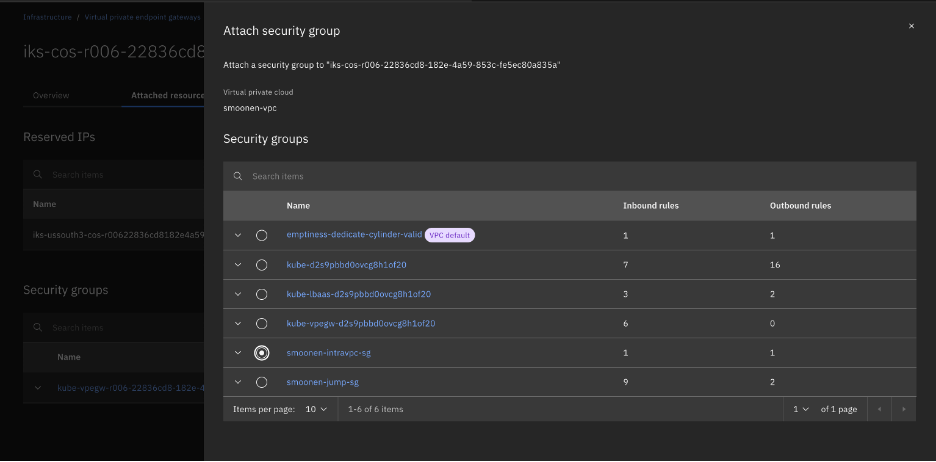
So I switched to running oc and velero on my VPC VSI jump server. When doing this, I discovered that the reason direct access to the COS storage was working for me at all was because ROKS had already automatically created a VPE in my VPC for COS direct access. I had to expand the security group for this VPE to allow my jump server to connect.

After doing so, the commands are now successful. Most of the errors and warnings were as I expected, but there were also warnings for block volumes for my two virtual machines that cause me to second-guess the use of FS backup as noted above.

Therefore I updated my schedule to remove the FS backup as noted above. This significantly reduced my errors. I also identified and cleaned up a leftover PVC from a failed migration attempt. Digging into the PVCs also led me to archive and delete my migration plan and migration pod in order to free up the PVC from the successful migration.

My next backup completed without error.

Kopia seems to be appropriately processing snapshots incrementally; or if not, it is doing an amazing job at deduplication and compression. For my two VMs, with a total storage of 55GB, my COS bucket storage increased by 0.1GB between two successful backups. Collecting a longer series of backups, the storage increase reported by COS seems to be around 0.17GB per increment.

I next attempted to restore one of these backups to a new namespace.

apiVersion: velero.io/v1
kind: Restore
metadata:
  name: test-restore
  namespace: openshift-adp
spec:
  backupName: smoonen-hourly-backup-20250924233017
  restorePVs: true
  namespaceMapping:
    default: test-restore-application

In this case the persistent volumes were restored, but the VMs were not re-created due to an apparent MAC address conflict with the existing VMs.

I learned that the following labels are commonly used when restoring virtual machines:

  • velero.kubevirt.io/clear-mac-address=true
  • velero.kubevirt.io/generate-new-firmware-uuid=true

I added the first to my restore definition.

apiVersion: velero.io/v1
kind: Restore
metadata:
  name: test-restore
  namespace: openshift-adp
  labels:
    velero.kubevirt.io/clear-mac-address: "true"
spec:
  backupName: smoonen-hourly-backup-20250924233017
  restorePVs: true
  namespaceMapping:
    default: test-restore-application2

This restore was successful.

The virtual machines are constituted in the new namespace.

Because this was a backup and restore of the entire namespace, even my ALB was reconstituted!

Thus I am able to SSH to that endpoint / VM.

OpenShift Virtualization on IBM Cloud, part 5: Migrating a virtual machine

See all blog posts in this series:

  1. OpenShift Virtualization on IBM Cloud, part 1: Introduction
  2. OpenShift Virtualization on IBM Cloud, part 2: Becoming familiar with VPC
  3. OpenShift Virtualization on IBM Cloud, part 3: Deploying ROKS, ODF, and OCP Virt
  4. OpenShift Virtualization on IBM Cloud, part 4: Creating a virtual machine
  5. OpenShift Virtualization on IBM Cloud, part 5: Migrating a virtual machine
  6. OpenShift Virtualization on IBM Cloud, part 6: Backup and restore
  7. OpenShift Virtualization on IBM Cloud, part 7: Dynamic resource scheduling

In this post, we will install the OpenShift Migration Toolkit for Virtualization and use it to migrate a VMware virtual machine to OpenShift Virtualization.

Install the migration toolkit

In the OpenShift web UI, navigate to Operators | OperatorHub and search for “migration.” Select the “Migration Tookit for Virtualization Operator” then click “Install.” I didn’t customize any of the parameters.

Afterwards this prompted me to create a custom resource for the ForkliftController.

In time a Migration for Virtualization menu item appears in the web UI.

Preparation

I deployed an Ubuntu VM into an overlay network in an IBM Cloud “VCS” instance (AKA “VCF on Classic Automated”) and connected my classic account to my VPC using an IBM Cloud Transit Gateway. This particular VCS instance was leveraging NFS storage.

Interestingly, VMware disables CBT by default for virtual machines. I found later in my testing that the migration provider warned me that CBT was disabled. I followed Broadcom’s instructions to manually enable it although this required me to reboot my VM.

In order to create a migration provider, RedHat recommends you create a “VDDK image.” Recent versions of the Migration operator will build this for you, and all you need to do is provide the VDDK toolkit downloaded from Broadcom. See RedHat’s instructions.

Although the migration provider is able to connect to vCenter by IP address rather than hostname, the final migration itself will attempt to connect to a vSphere host by its hostname. Therefore we need to prepare the environment to delegate the VCS instance domain to its domain controllers. I followed the RedHat instructions to configure a forwarding zone in my DNS controller. Here is the clause that I added.

  servers:
  - forwardPlugin:
      policy: Random
      upstreams:
      - 10.50.200.3
      - 10.50.200.4
    name: vcs-resolver
    zones:
    - smoonen.example.com

Create the migration provider

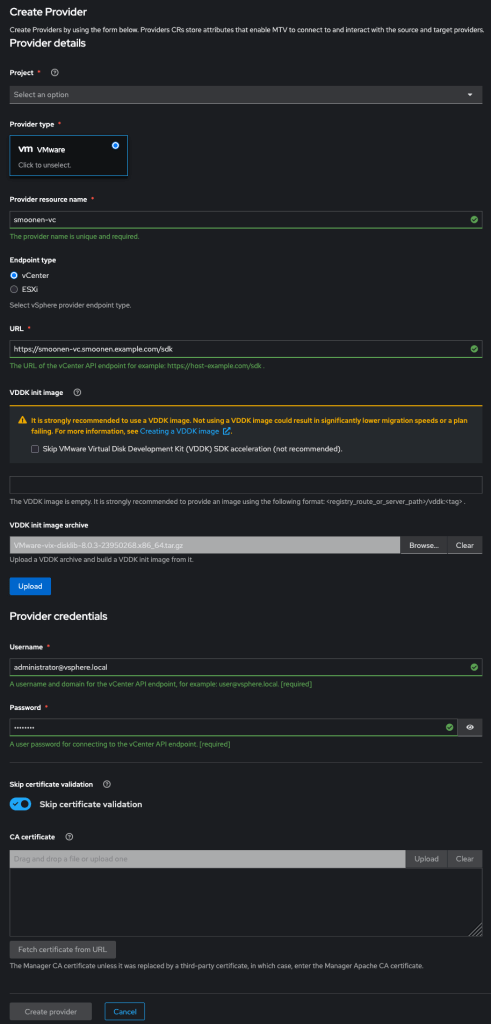
I then went into the Providers view in the OCP web UI and created a VMware provider. Be sure to add /sdk to the end of your vCenter URL as shown below. Note also that the migration operator automatically creates a “host” provider for you, representing your OCP cluster, in the openshift-mtv project. In order to meaningfully migrate your VMs to this provider, it is best to create your VMware provider in the same project.

Create the migration plan

In the OpenShift web console I created a migration plan.

Then I selected my virtual machine.

Then I created a network mapping. The only currently supported network mapping in IBM Cloud ROKS is the pod network.

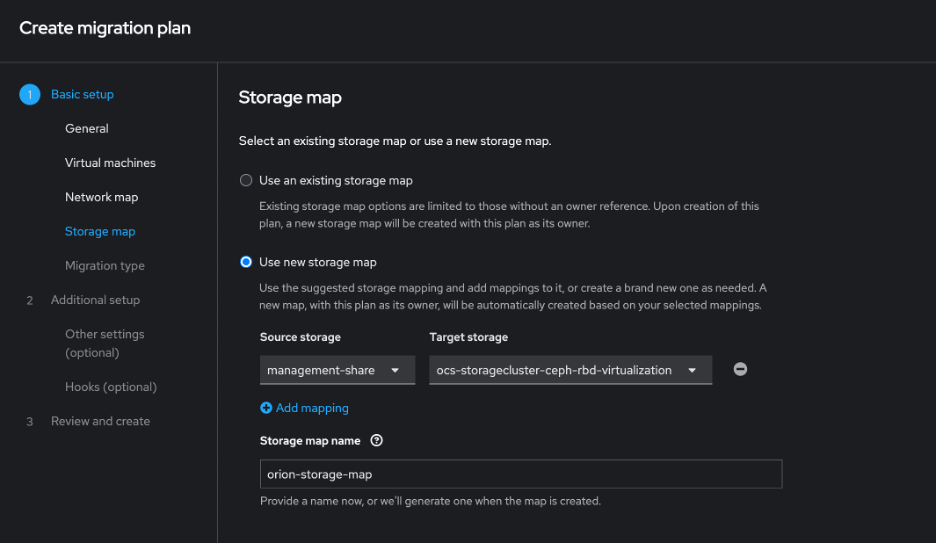
Then I created a storage mapping, being sure to select the ODF storage.

Then I chose a warm migration.

The preservation of static IPs is not currently supported in ROKS with the Calico provider.

I chose not to create migration hooks. You could use these, for example, to reconfigure the network configuration.

In my migration plan I chose to migrate the VM to the default project. My migration plan actually failed to initialize because it could not retrieve the VDDK image that had been built for me. Either before or after creating the migration plan, run the following command to ensure that it can access the cluster’s image registry:

oc adm policy add-cluster-role-to-user registry-viewer system:serviceaccount:default:default

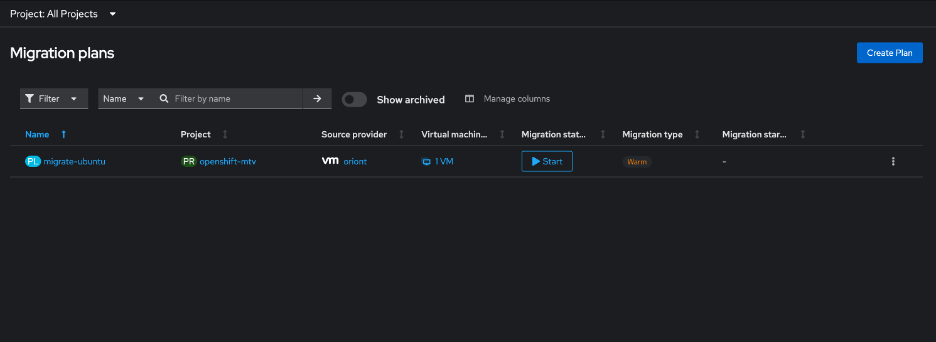
Then I clicked to start the migration.

The migration created a snapshot and left my VM running.

After this completed, the VM remains running on the VMware side and is not yet instantiated on the ROKS side. The migration plan appears in a “paused” state.

Next I performed the cutover. I had a choice to run it immediately or schedule it for a future time.

The cutover resulted in the stopping of my VM on the VMware side, the removal of the snapshot, and the creation and removal of an additional snapshot; I presume this represented the replication of the remaining data as signaled by CBT.

It then created and started a VM on the ROKS side.

In order to establish network connectivity for this VM, it was necessary to reconfigure its networking. The static IP must be exchanged for DHCP. In my case I also found that the device name changed.

For completeness I also installed qemu-guest-agent but it appears this is not strictly necessary. I then edited /boot/efi/loader/loader.conf to force the loading of virtio modules per Ubuntu instructions. After doing so, it appears that they are in use.

In theory, MTV should have both triggered the installation of qemu-guest-agent as well as the installation of the virtio drivers. I observed that on first boot it did attempt to install the agent, but understandably failed because the network connction was not yet established.

OpenShift Virtualization on IBM Cloud, part 4: Creating a virtual machine

See all blog posts in this series:

  1. OpenShift Virtualization on IBM Cloud, part 1: Introduction
  2. OpenShift Virtualization on IBM Cloud, part 2: Becoming familiar with VPC
  3. OpenShift Virtualization on IBM Cloud, part 3: Deploying ROKS, ODF, and OCP Virt
  4. OpenShift Virtualization on IBM Cloud, part 4: Creating a virtual machine
  5. OpenShift Virtualization on IBM Cloud, part 5: Migrating a virtual machine
  6. OpenShift Virtualization on IBM Cloud, part 6: Backup and restore
  7. OpenShift Virtualization on IBM Cloud, part 7: Dynamic resource scheduling

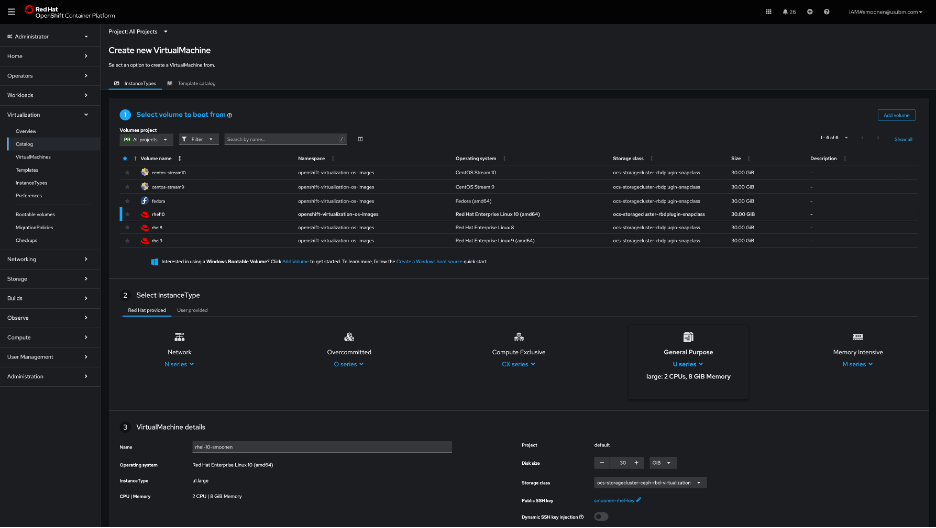
I had some initial difficulties creating a virtual machine from the OpenShift web console UI in the Virtualization | Catalog page, but later this worked okay. Here is a screenshot of that page, but in this post I will document a command-line approach.

For my command-line approach, I first used ssh-keygen to create an SSH key pair, and then created a secret based on the public key:

oc create secret generic smoonen-rsakey --from-file=rhel-key.pub -n=default

I then created a YAML file, referencing this secret, and with the help of the example YAML generated by the OpenShift console UI. Here is my configuration:

apiVersion: kubevirt.io/v1
kind: VirtualMachine
metadata:
  name: rhel-10-smoonen5
  namespace: default
spec:
  dataVolumeTemplates:
    - metadata:
        name: rhel-10-smoonen5-volume
      spec:
        sourceRef:
          kind: DataSource
          name: rhel10
          namespace: openshift-virtualization-os-images
        storage:
          resources:
            requests:
              storage: 30Gi
  instancetype:
    name: u1.large
  preference:
    name: rhel.10
  runStrategy: Always
  template:
    metadata:
      labels:
        network.kubevirt.io/headlessService: headless
    spec:
      domain:
        devices:
          autoattachPodInterface: false
          disks: []
          interfaces:
            - masquerade: {}
              name: default
      networks:
        - name: default
          pod: {}
      subdomain: headless
      volumes:
        - dataVolume:
            name: rhel-10-smoonen5-volume
          name: rootdisk
        - cloudInitNoCloud:
            userData: |
              #cloud-config
              chpasswd:
                expire: false
              password: xxxx-xxxx-xxxx
              user: rhel
              runcmd: []
          name: cloudinitdisk
      accessCredentials:
        - sshPublicKey:
            propagationMethod:
              noCloud: {}
            source:
              secret:
                secretName: smoonen-rsakey

I applied this by running the command oc apply -f virtual-machine.yaml.

Connecting to the virtual machine

I relied on this blog post which describes several methods for connecting to a virtual machine.

I chose to use virtctl/SSH. Steps:

  1. Login to OpenShift web console
  2. Click question mark icon in top right and select Command Line Tools
  3. Scroll down and download virtctl for your platform.
  4. If you are on a Mac, follow the same steps performed earlier with oc to allow virtctl to run.

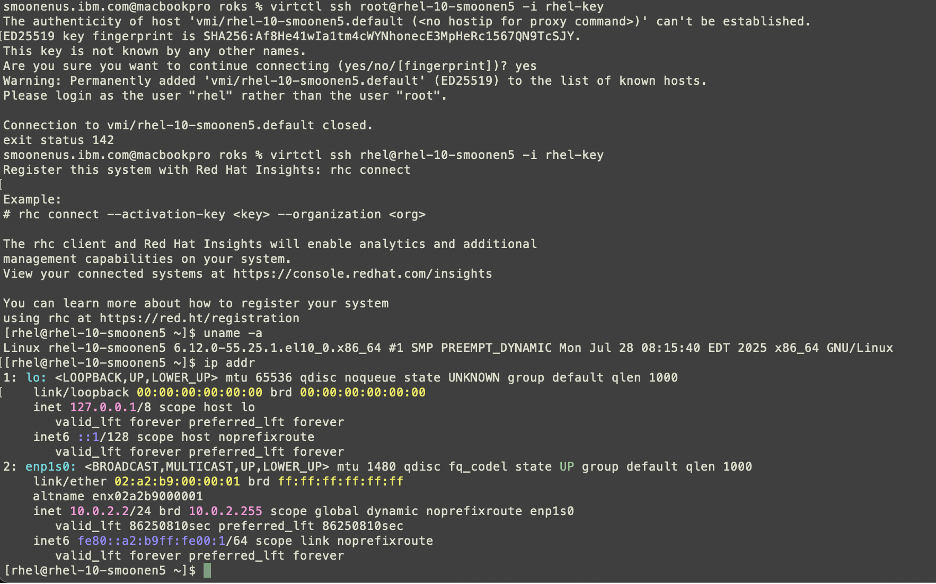
Here you can see me connecting to my virtual machine.

Performance

Be sure to read Neil Taylor’s blog posts referenced in the first post in this series, which explain why this has an address of 10.0.2.2.

As it stands it can reach out to the public network, since I configured a public gateway on the worker nodes’ subnet. Although I believe I have entitlement to run RHEL on these workers, the VM is not initially connected to a Satellite server or to any repositories. I wanted to run a quick iperf3 test, but this makes it not as simple as doing a yum install. I was able eventually to snag libsctp and iperf3 RPMs and ran a simple test. Compared to a VMware VM running on VPC bare metal, the ROKS VM gets comparable throughput on iperf3 tests to public servers.

As I receive more insight into the RHEL entitlement I will document this.

Inbound connectivity to VM

NLB (layer 4) does not currently support bare metal members. Therefore we need to create an ALB (layer 7). I created a public one just to see how that works. I’m reasoning through what I need to build based on Neil’s blog and IBM Cloud documentation.

Here is the YAML I constructed:

apiVersion: v1
kind: Service
metadata:
  name: smoonen-rhel-vpc-alb-3
  annotations:
    service.kubernetes.io/ibm-load-balancer-cloud-provider-ip-type: "public"
    # Restrict inbound to my IPs
    service.kubernetes.io/ibm-load-balancer-cloud-provider-vpc-security-group: "smoonen-jump-sg"
spec:
  type: LoadBalancer
  selector:
    vm.kubevirt.io/name: rhel-10-smoonen5
  ports:
  - port: 22
    protocol: TCP
    targetPort: 22

Importantly, you should not specify the service.kubernetes.io/ibm-load-balancer-cloud-provider-vpc-lb-name annotation; what IBM Cloud calls a persistent load balancer. This reuses an existing load balancer of that name if it exists. So, for example, if you have a scenario where you are testing restore of an application to a new and temporary namespace, it will hijack the load balancer for your running application.

After provisioning this, I was able to successfully SSH into my VM with the load balancer resource that was created.