Connecting to the IBM Cloud VPN

IBM Cloud offers a VPN service for your account which you can use to access your dedicated IBM Cloud network. The VPN access is available from your browser using a Java applet, but is also available using a standalone VPN application for Windows, Linux, or macOS.

Unfortunately, I’ve found that the version 2.0 update of the MotionPro Plus application for macOS has broken my VPN access. Not only has it lost all of the passwords I had previously saved, but when I do enter my password and attempt to connect to the IBM Cloud, it immediately disconnects.

While we await a fix from Array Networks, it is possible to revert to an older version of MotionPro:

  1. View the macOS Launchpad and find the MotionPro+ icon
  2. Click and hold the icon until it begins to jiggle, then release. Note that this will delete your MotionPro configuration.
  3. Click the X to uninstall MotionPro+
  4. From the Array Networks support site, download the latest Mac OS MotionPro client corresponding to AG-OS 9.4.0.x
  5. Open the disk image and run the MotionPro installer package within the image. The installer will also install some command line tools
  6. Recreate your MotionPro configuration

See also: managing SoftLayer VPN subnet access.

Monitoring your IBM Cloud vSphere servers

The IBM Cloud for VMware Solutions architecture specifies that vSphere (ESXi) servers should be attached to the public network, but should be configured not to enable their own public IP address. This ensures that workloads running on the servers can access the public network as necessary (e.g., using an NSX Edge Services Gateway), but that the hosts themselves cannot be reached over the internet.

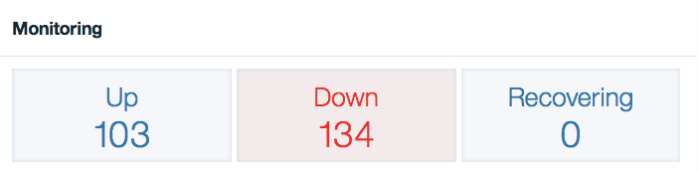
When IBM Cloud (a.k.a. SoftLayer) provisions a bare metal server, the default monitoring configuration for that server is to ping its public IP address. This means that by default all of your ESXi hosts are reported by the IBM Cloud infrastructure portal to be down:

servers-down

You can correct this by re–configuring the monitor for each server to test the private IP address rather than the public IP address. Since you cannot change the IP address of a monitor, you will have to remove the existing monitor and create a new monitor for the private IP address.

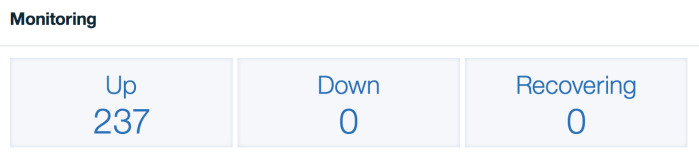
If you have many bare metal servers in this situation, you’ll want to automate the re–configuration. To help with this, I wrote a Python script to reconfigure your bare metal server monitors. You’ll have to fill in your SoftLayer username and API key, and the script will reconfigure the monitors for all servers that are (1) marked down, and (2) have a monitor configured for their public IP but not their private IP. The new monitor for the private IP will retain the same attributes as the existing monitor for the private IP. Voila:

sl-monitor-fixed

Managing SoftLayer VPN subnet access

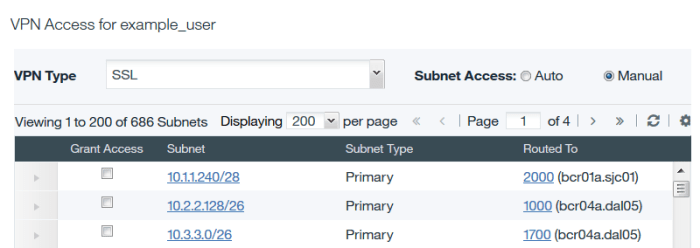
The IBM SoftLayer VPN only supports connection to 64 of your private subnets. If you have more than 64 private subnets in your SoftLayer account, you need to switch your VPN’s subnet management from Automatic to Manual, and select the specific subnets to which you want to connect.

The process for selecting subnets in the UI is not simple, especially if your account has hundreds of subnets. The subnets are not sorted, the dialog is small, and the pagination is slow.

VPN

However, it is possible to manage your VPN subnets programmatically using the SoftLayer API. I have created a Python script that allows you to manage your SoftLayer VPN subnet access. The script requires your SoftLayer username, API key, and a list of private IP addresses to which you want to connect. The script locates the subnets in your account that match your selected IP addresses, and assigns exactly these subnets to your SoftLayer VPN account.

You should wait a few minutes after running the script for it to take effect.

Ansible Playbook for Wekan

Ansible Playbook for Wekan

My team is experimenting with using open-source tools deployed internally for Kanban cards.

One tool we are exploring is Wekan, formerly known as Libreboard.

I deployed a Wekan instance to a RHEL 7 virtual machine for our testing. For this deployment, I wrote a simple Ansible playbook with a few additional configuration files (nginx config, Node PM2 configuration), in case there is ever a need to re-deploy the instance.

You can find my playbook and associated files on Github: wekan-setup. The files are as follows:

  • purekan.yml—Ansible playbook
  • wekan.yml—Node PM2 configuration
  • wekan.conf—nginx proxy configuration

You’ll need to customize things slightly based on your domain name or if you are using a distribution other than RHEL.

Kindle

I bought a basic Kindle recently and I’m enjoying it. I don’t currently plan to buy many e-books, but rather use the Kindle as a better tool for existing reading compared to my computer and phone. Here’s what I’ve discovered so far:

PDFs

PDF’s aren’t the best format for reading on Kindle. I’ve found two tools for converting PDFs to e-books and uploading them to my Kindle. For simple PDFs (e.g., single column, and not a scanned image), Calibre is great for converting and uploading. However, Calibre does a poor job with PDFs that are scanned copies of books (this applies to many of the books linked above). For these I use a two-step process: first, I run the PDF through the K2PDFOpt tool (at the time of this writing, version 1.63 crashes for me on some books, but 1.51 is stable). This increases the size of the PDF file significantly, but it organizes it in a form that Calibre is much better able to handle. Then I use Calibre to convert these PDFs to e-books, and upload them to my Kindle.

Articles

Until now, I saved longer articles and blog posts for later reading using open tabs in my browser. This quickly grows unwieldy. The Instapaper service allows you to save web pages for later reading, and it integrates with Kindle. Now when I run across a longer article, I click a button to send it to Instapaper, and by the next morning the article is ready to read on my Kindle.

Blogs

The Kindlefeeder service allows you to send blog and news feeds to your Kindle. I’ve selected several of the blogs I read (ones that tend to have longer articles) to be sent to my Kindle, and now I read them there rather than on my computer.

Other

If you have any other tips and tricks I’d appreciate hearing about them.

All of the above should work with e-readers other than Kindle. In the case of Instapaper and Kindlefeeder, you may need to upload a file manually to your reader instead of having it automatically sent there.

SmugMug uploader

[SmugMug]I’ve written a small Python script to upload pictures to a SmugMug gallery. I love SmugMug and use it extensively for family photos. I’m using this script for my personal use because it’s much simpler and much less of a resource hog than a browser-based uploader, and also because it was a fun exercise to try out the SmugMug API. You can run this script as follows to upload one or more files:

python upload.py gallery-name picture-file-name . . .

On Windows I’ve set up a desktop shortcut pointing to the script, and I can drag and drop a pile of picture files onto the icon and it will upload away. I’ve tested it using both Python 2.5 using simplejson, and also using Python 2.6 which has simplejson built in. Earlier versions of Python may require you to change the import of hashlib to md5, and change the hashlib.md5() invocation to a md5.new() invocation. You’ll also need to modify the script to contain your email address and SmugMug password, and obtain a SmugMug API key for your own development use, but this is a very painless process. Here is the script:

#!/usr/bin/python

##########
# Requirements: Python 2.6 or
#               simplejson from http://pypi.python.org/pypi/simplejson
##########

EMAIL='...'
PASSWORD='...'

##########
APIKEY='...'
API_VERSION='1.2.2'
API_URL='https://api.smugmug.com/services/api/json/1.2.2/'
UPLOAD_URL='http://upload.smugmug.com/photos/xmlrawadd.mg'

import sys, re, urllib, urllib2, urlparse, hashlib, traceback, os.path
try    : import json
except : import simplejson as json

if len(sys.argv) < 3 :
  print 'Usage:'
  print '  upload.py  album  picture1  [picture2  [...]]'
  print
  sys.exit(0)

album_name = sys.argv[1]
su_cookie  = None

def safe_geturl(request) :
  global su_cookie

  # Try up to three times
  for x in range(5) :
    try :
      response_obj = urllib2.urlopen(request)
      response = response_obj.read()
      result = json.loads(response)

      # Test for presence of _su cookie and consume it
      meta_info = response_obj.info()
      if meta_info.has_key('set-cookie') :
        match = re.search('(_su=S+);', meta_info['set-cookie'])
        if match and match.group(1) != "_su=deleted" :
          su_cookie = match.group(1)
      if result['stat'] != 'ok' : raise Exception('Bad result code')
      return result
    except :
      if x < 4 :
        print "  ... failed, retrying"
      else :
        print "  ... failed, giving up"
        print "  Request was:"
        print "  " + request.get_full_url()
        try :
          print "  Response was:"
          print response
        except :
          pass
        traceback.print_exc()
        #sys.stdin.readline()
        #sys.exit(1)
        return result

def smugmug_request(method, params) :
  global su_cookie

  paramstrings = [urllib.quote(key)+'='+urllib.quote(params[key]) for key in params]
  paramstrings += ['method=' + method]
  url = urlparse.urljoin(API_URL, '?' + '&'.join(paramstrings))
  request = urllib2.Request(url)
  if su_cookie :
    request.add_header('Cookie', su_cookie)
  return safe_geturl(request)

result = smugmug_request('smugmug.login.withPassword',
                         {'APIKey'       : APIKEY,
                          'EmailAddress' : EMAIL,
                          'Password'     : PASSWORD})
session = result['Login']['Session']['id']

result = smugmug_request('smugmug.albums.get', {'SessionID' : session})
album_id = None
for album in result['Albums'] :
  if album['Title'] == album_name :
    album_id = album['id']
    break
if album_id is None :
  print 'That album does not exist'
  sys.exit(1)

for filename in sys.argv[2:] :
  data = open(filename, 'rb').read()
  print 'Uploading ' + filename
  upload_request = urllib2.Request(UPLOAD_URL,
                                   data,
                                   {'Content-Length'  : len(data),
                                    'Content-MD5'     : hashlib.md5(data).hexdigest(),
                                    'Content-Type'    : 'none',
                                    'X-Smug-SessionID': session,
                                    'X-Smug-Version'  : API_VERSION,
                                    'X-Smug-ResponseType' : 'JSON',
                                    'X-Smug-AlbumID'  : album_id,
                                    'X-Smug-FileName' : os.path.basename(filename) })
  result = safe_geturl(upload_request)
  if result['stat'] == 'ok' :
    print "  ... successful"

print 'Done'
# sys.stdin.readline()

I am donating this script to the public domain. You are welcome to use and modify it as you please without conditions. I’d appreciate hearing about your experience with this script or any changes and improvements you’ve made; please leave a comment. Thanks!

Update 2010-07-20

Since I first posted this, I’ve updated it as follows:

  1. Add a Content-Type header of ‘none’. This is to workaround a bug in the SmugMug API.
  2. Use basename() to send only the file’s basename for X-Smug-FileName.
  3. Rewrite safe_geturl() to loop up to five times if the upload attempt fails. I’ve found that uploading is surprisingly unreliable, and re-attempting the upload generally works fine.
  4. Add a commented call to readline() at the end of the script. In my case, I run my script by dragging files onto an icon on my Windows desktop, which causes it to run in a DOS window and vanish when done. If you uncomment this line, it will wait for you to press Enter when it is done uploading. You’ll be able to see any files that weren’t uploaded successfully.

Update 2010-11-28

SmugMug made a recent change to their API’s login behavior which broke this script. While the new login behavior is not documented in the API docs, the fix is apparently to use a session cookie along with the session ID. While it’s a bit of a kludge, I’ve updated the script above to save this cookie in a global variable and submit it on subsequent requests.

Update 2011-06-24

I’ve fixed a bug in the script causing it to wrongly report a failure for certain requests that don’t send back the session cookie. The fix involves testing whether a set-cookie header was returned before accessing the header.

Update 2013-10-01

Version 1.2.0 of the SmugMug API has stopped working, so I have updated the script to use version 1.2.2 of the API.


Improving Firefox session restore

I use Firefox session restore regularly.  This saves all my open tabs whenever Firefox closes (or crashes) and restores them when it reopens.  Unfortunately, there are still cases where Firefox will forget my open tabs.  This happens, for example, when I close my main window, thinking that I’m closing Firefox, but then I realize that there is still a pop-up window open.  When I restart Firefox, that popup will be restored instead of my old tab list!

I have not yet found a way to recover the tabs.  What a sinking feeling this leaves you with!  My open tabs are sometimes the result of several weeks’ worth of browsing.  I’ve grown better at saving links using del.icio.us rather than holding them in open tags, and obviously I need to work harder at this.  But I often still have up to 20 tabs open at any given time, waiting to be read.

This happened to me again today.  So I resolved one more time to try to find a solution.  And I did!  I found and installed Tab Mix Plus (I installed the latest TMP development build).  This Firefox plugin remembers your sessions from more than just the most recently closed window.  So if you close your main window first but find a popup lingering, you can close the popup without worrying that you have lost the tabs from your main window.  What a relief!

Here are the settings that I chose in TMP:

  1. When you first enable Tab Mix Plus, it asks you whether you want to use the Firefox session restore feature.  The TMP session restore is much better than Firefox’s, so choose No.
  2. Go to Tools|Tab Mix Plus Options to choose other options.
    1. Click the “Events” icon.  On the “Tab Features” tab, un-check “Ctrl-Tab navigates tabs in the most recently used order.”  This will set Ctrl+Tab to behave the way it usually does in Firefox.
    2. Click the “Session” icon.
      1. Make sure that “Use Firefox’s built-in Session Restore feature” is not checked.
      2. Under “When Browser Starts”, select “Restore”.
      3. Under “When Browser Exits”, make sure “Save Session” is selected.

Tab Mix Plus provides additional control over your browser sessions.  Using the Tools|Session Manager menu, you can manually save sessions, and also restore older sessions.

Blocking ads

For awhile now I’ve been using a tool to block advertisements in my web browsing. Here’s how to install it:

  1. Do you use “Firefox” to surf the web? If not, I recommend it; you can get it here. This ad blocking tool only works with Firefox (though I understand there are ad blockers for other browsers).
  2. Once you have Firefox installed, visit Adblock Plus to install the ad blocker:
    1. Click on the “Install Adblock Plus” link.
    2. A bar will pop up indicating that the install was blocked.
    3. Click the “Options” button on the bar and enable installations for this website.
    4. Click on the “Install Adblock Plus” link again, then click on the “Install” button.
  3. When it asks you which blocking list to subscribe to, choose the “EasyList” blocking list. Once a week your computer will check this list to see if there are any new known ads to be blocked.

After you do this you should rarely see ads in Firefox.